
B2B customer support teams often spend too much time answering the same questions. Over and over, they respond to tickets from accounts wondering how to add new users or export data.
To avoid these repeat questions, you can create a knowledge base full of instructions and advice for customers. If you set this resource up right and keep it maintained, it can reduce ticket volume and improve customer satisfaction.
In this article, you’ll learn how to set up a knowledge base with Pylon. But first, let’s look at the key characteristics of a successful self-service system.
A knowledge base is a central, searchable library that lets customers and internal teams find info on their own. These are the key elements of a great knowledge base.
When you plan your knowledge base, create a logical set of categories that maps to stages in the customer journey, like onboarding and integrations. Don’t overcomplicate the structure, but stick to a max of two or three levels.
Make it easy for customers and AI agents to search your knowledge base by using simple, descriptive article titles and collection names. Think about questions your customers will have, and frame the content in those terms. You can also interlink related articles, so customers can find more information on similar topics.
Use visibility controls to choose who will see which articles. These could include:
You can also create hidden articles that people can only open via direct links, and that don’t appear in searches. This is useful to document upcoming features.
Choose knowledge base software that can:
For example, Pylon’s AI-powered knowledge base tools help you write, organize, and maintain your docs based on real support conversations.
Follow these simple steps to learn how to create a knowledge database with Pylon.
First, log in to Pylon and select “Knowledge Base” in the sidebar. You’ll find the “Knowledge Base” dashboard, where you can write and manage articles, add your branding, and configure settings.
In Pylon, knowledge bases are structured around collections, which are like folders that contain sets of articles. To make a new knowledge base, simply create a collection and give it a name.
Set the URL slug as well, and add a description. You can also choose whether to make the knowledge base public (visible to everyone) or internal (only visible to users logged in to Pylon). For a customer-facing knowledge base, the public option is usually best.
Within the knowledge base, set up collections based on the category structure that makes sense for your company. You could organize articles based on common topics, types of customers, or stages in the customer journey.
For example, you could create high-level categories like:
As you create each new collection, choose your main knowledge base as the “Parent Collection,” so the new categories sit inside it. If you have a very large knowledge base, you can also create sub-categories within each collection to divide it up further.
When you’re ready to write an article, open the collection where you want it to live. Choose the option to create an article, and use the what-you-see-is-what-you-get editor to write your content. You can format text by highlighting it and choosing options in the contextual menu, and the editor also supports Markdown syntax.
To control how the article looks, you can create blocks for common elements like accordions, callouts, code blocks, tables, images, and videos. Restructuring your article is as easy as dragging blocks around to reposition them.
Keep each article short, well structured with headers and lists, and focused on the answer to a single question. If you need to give more details, add them in a new article and link the two. Remember that the goal is to make it quick and easy for customers to find what they need.
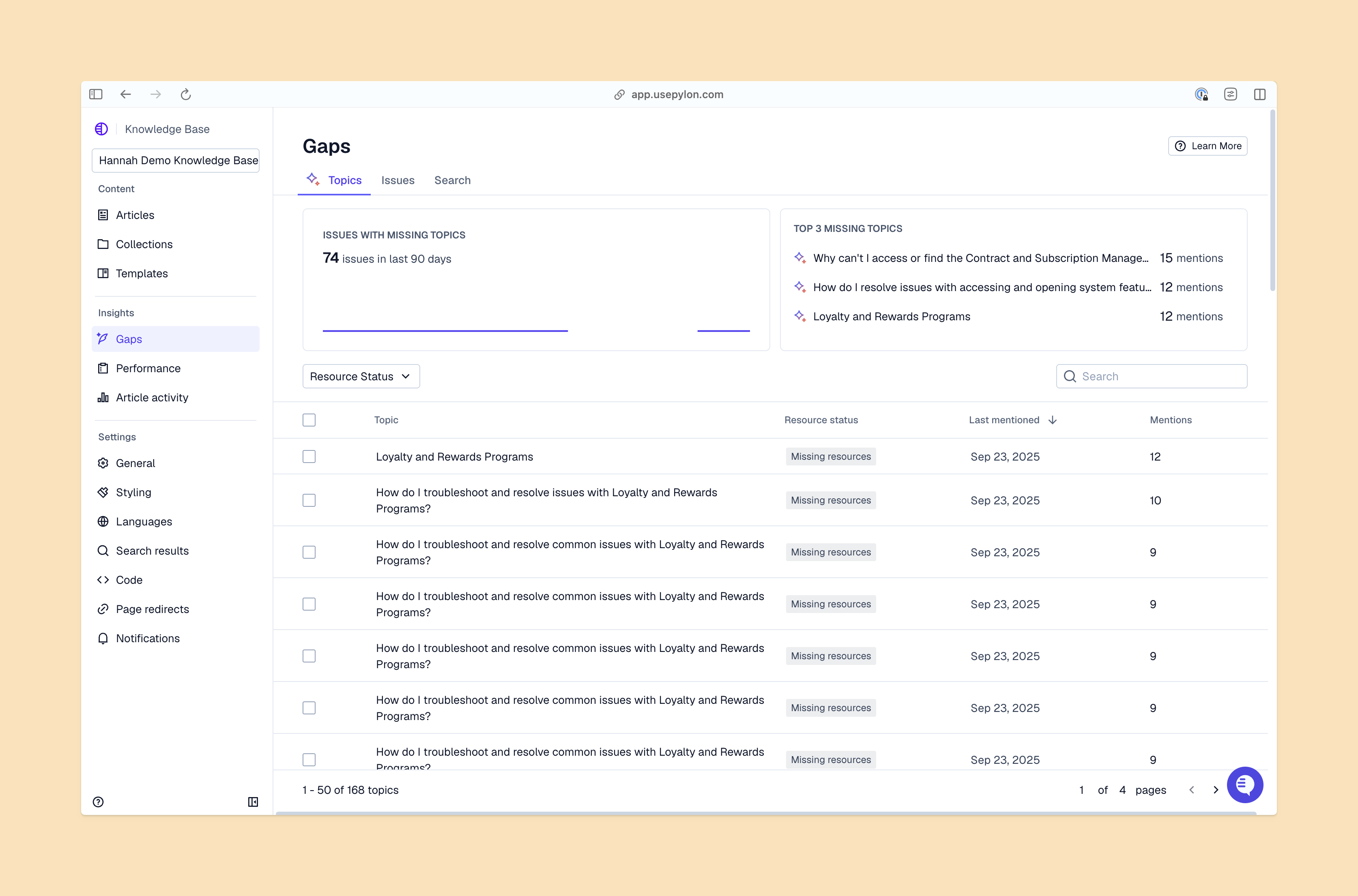
Pylon’s knowledge base platform comes with AI tools that make it faster to create content. Instead of starting from scratch, you can have Pylon review your knowledge base for gaps, then suggest new articles based on questions customers often ask.
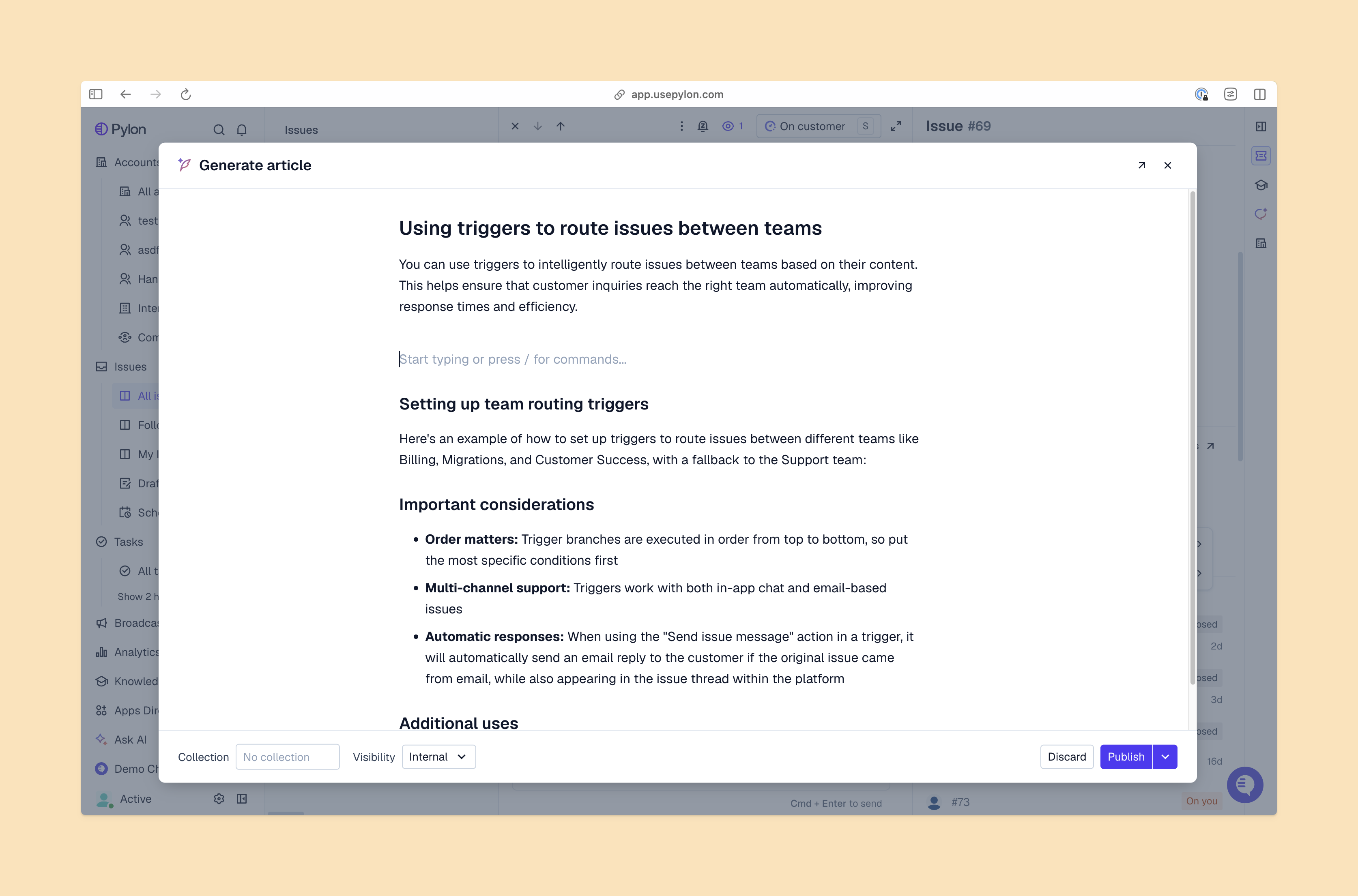
You can also use AI to generate new articles automatically, based on past answers your support team has given. After that, you can use AI assistants to help you review and edit the results before you publish.
In the “Styling” tab, you’re able to add your logo, change the knowledge base’s colors to match your brand, and customize its headers and footers. The preview shows the effects of your changes in real time.
If you want to make more advanced edits, you can dive into the code and create a custom theme, with fully customized styling and scripts.
If you choose to make some articles visible only to logged-in customers, you can decide how those customers will gain access. By default, accounts get one-time passcodes via email. But you can also set up single sign-on, so any customers who are logged into your dashboard can also access the knowledge base.
When you’re done building the knowledge base, launch it for your customers. Track its performance, and use the data to improve content over time.
Pay attention to metrics like:
An internal knowledge base helps your support team find answers fast so they can help customers. In contrast, an external knowledge base is a self-service option for customers, one that helps them answer their own questions.
Use an internal knowledge base if you want to improve support team productivity and speed up onboarding. Choose an external knowledge base if you’d like to reduce ticket volume by giving customers instant answers to common questions. Pylon supports both types from a single interface, so you don't need separate tools.
If you think of a knowledge base as a static resource, it will quickly become outdated, and customers will probably stop using it. The best knowledge bases constantly evolve to reflect changing customer needs and new product details.
Use AI tools to make it easy for your team to keep the knowledge base updated, and to automate time-consuming parts of the workflow. With the right approach to building and maintaining your knowledge base, you’ll make it a useful resource that gets better the more your team and customers use it.
Pylon is the modern B2B support platform that offers true omnichannel support across Slack, Teams, email, chat, ticket forms, and more. Our AI Agents and Assistants automate busywork and reduce response times. Plus, with Account Intelligence that unifies scattered customer signals to calculate health scores and identify churn risk, we're built for customer success at scale.
A B2B knowledge base should cover how-to guides for core features, troubleshooting articles for common errors, getting started content for new users, account and billing FAQs, API and integration documentation, and release notes for product changes.
With Pylon, you can create a knowledge base, configure branding, set up your collection structure, and publish your first articles in under an hour. AI article generation from existing support tickets can dramatically accelerate content creation.
Pylon offers four visibility tiers for articles and collections: Public (visible to everyone), Customer (gated to logged-in users, with optional account-tier or property filters), Internal (your team only, not surfaced to customers or AI agents), and AI Agent Only (available to AI agents and your team, hidden from customers). You can set visibility at the collection level so all articles inside inherit the same rules, or override the default for specific articles.
Pylon's AI Copilot generates article drafts from resolved tickets and Slack threads, so your knowledge base grows automatically as your team resolves issues. The knowledge gap detection surfaces common customer questions that aren't yet documented, giving your team a prioritized content backlog.
At a minimum, update articles with every significant product release, and audit the full knowledge base quarterly. In practice, the best knowledge bases update continuously, every time a new edge case is resolved, a feature changes, or a customer leaves a low rating on an article.
Pylon Workforce Management is available now. See it in action with a live demo.