
Most B2B support happens outside the product. When a user runs into a wall, they have to stop what they’re doing, open a new tab, and dig through a help center or send an email. By the time they get a response, they’ve either figured it out themselves or given up entirely.
You can close this gap by bringing support directly into your product. When you set up a chat widget, you give your users a direct line to your team at the exact moment they need it. This turns a frustrating roadblock into a seamless resolution.
In this guide, we’ll cover how to install and configure Pylon’s Chat Widget, plus what chat widgets are and why B2B teams need one embedded in their product.
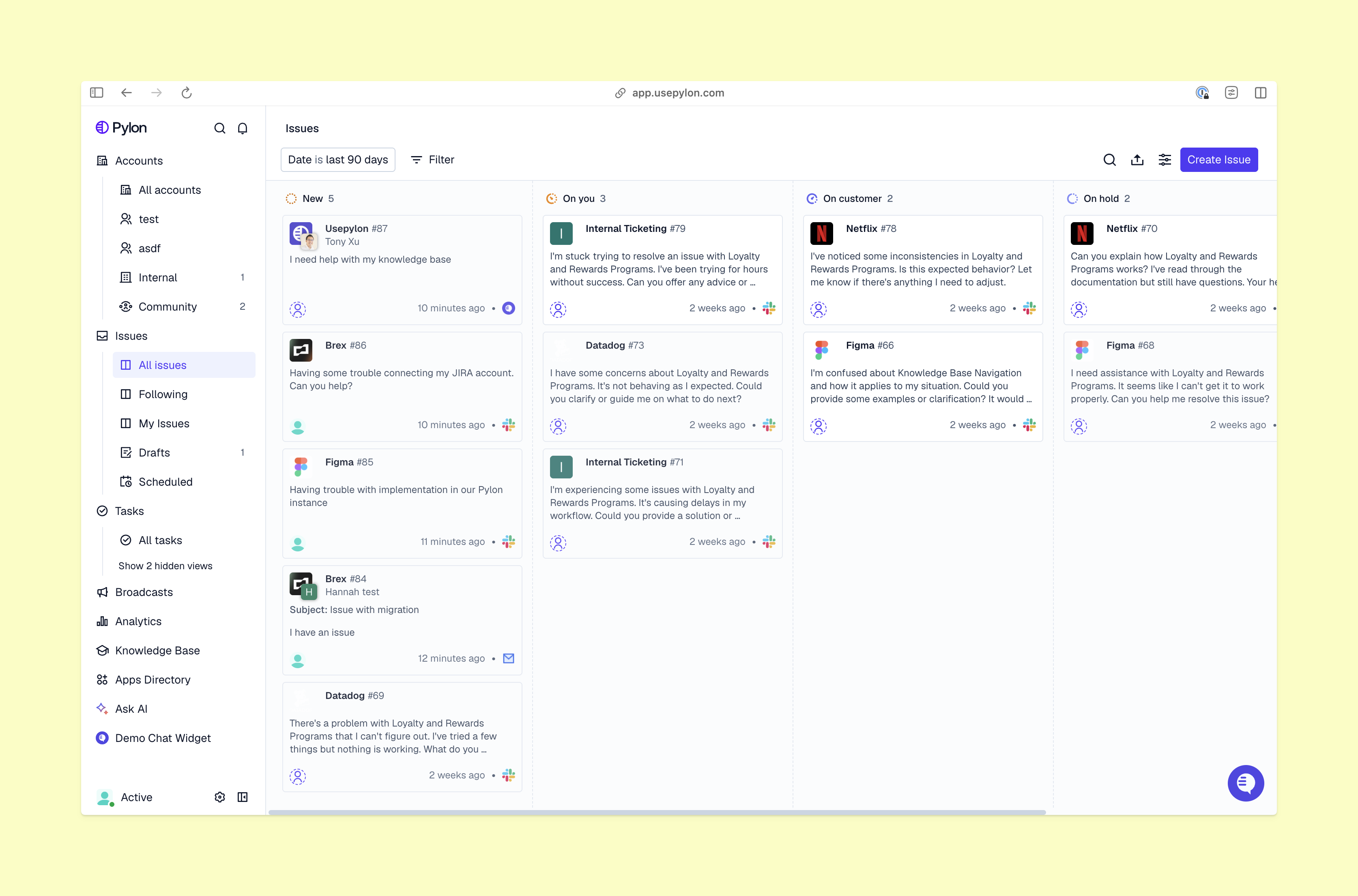
You don’t need to build a custom chat widget for your website from scratch. Pylon gives you a ready-to-use widget that drops right into your frontend. Here’s how to install and configure it.
First, you need to grab your unique identifier. Log into your Pylon workspace, navigate to the Settings tab, and grab your APP_ID. You’ll need this for the installation script. This ID is what connects the frontend widget on your application to your specific backend workspace in Pylon. When a user types a message, this ID is what routes it correctly to your team’s queue.
You’ll need to add a small snippet of code to your application. Add the provided <script> tag right before the </body> tag in your index.html file. Make sure to replace the placeholder text with the APP_ID you grabbed in the first step. This script is lightweight and loads asynchronously, so it won’t slow down your application’s performance or block other critical resources from loading. It simply tells the browser to fetch the widget interface when the page renders.
You want the widget to know who’s talking. Anywhere in your React code, you can access the window object and set the Pylon config. Add this code wherever the user has already logged in, and details like their email and name become available. This setup means your team won’t have to ask for those details again. You can pass through specific attributes like their full name, avatar URL, and unique account ID. When this data flows into Pylon, your support team gets an immediate, complete picture of the person they’re helping.
If your application uses a Content Security Policy (CSP), you’ll need to update it to allow the widget to load. Add the necessary connect-src, script-src, font-src, style-src, and img-src directives to your policy so the widget can communicate with Pylon’s servers.
Create a dedicated Slack channel in your workspace where your team can respond to incoming chats, like #chat-support. If you make this channel private, give the Pylon bot access. Then, set this as your official Chat Support Channel in your Pylon settings. By routing everything into Slack, your support agents don’t have to monitor a separate browser tab. They get a notification in Slack, they click reply, and the message instantly appears in the user’s chat widget.
Make the widget feel native to your application; you can customize the colors, branding, and welcome message. If you manage multiple products, you can even set up multiple separate chat widgets with different branding for each. A custom widget builds trust because it looks like a deliberate part of your software interface.
Decide what you want the widget to do. You can enable live chat, embed your knowledge base search, add custom forms for bug reports, and include quick links to important resources. You can also use the JavaScript API to build custom workflows and control the widget’s behavior programmatically. For example, you can use the API to automatically open the widget when a user clicks a specific “Help” button in your navigation bar, or you can trigger a proactive message when they visit a complex pricing page.
Before you go live, you should set up identity verification. This prevents bad actors from spoofing user identities and guarantees that the person chatting is actually the authenticated user they claim to be. You do this by generating an HMAC hash of the user’s email address on your backend server using your Pylon secret key, and passing that hash to the frontend configuration, near-guaranteeing that the data is secure.
If you want to offer 24/7 support, you can connect an AI agent to the widget. The agent will read your documentation and automatically answer common questions before they ever reach your team. This is how modern B2B teams scale their operations without tripling their headcount. The AI handles the repetitive password resets and basic configuration questions, freeing up your people to handle the complex technical escalations that require expertise.
If you want to understand the difference between rule-based chatbots and this kind of intelligent automation, our breakdown of chatbots versus conversational AI covers it in detail.
Once everything is configured and tested, go to the top of the Chat Widget Settings page and toggle Enable Chat Widget to switch it on. The chat bubble will immediately appear in your product, ready for your customers to use. From here, you can monitor incoming conversations and iterate on your configuration as you learn what your users need.
Schedule your personalized walkthrough
A chat widget is a UI component embedded into a website or application that enables real-time messaging between a user and a company. It usually appears as a chat bubble in the bottom corner of the screen. When a user clicks it, it opens a messaging interface where they can talk to support, search documentation, or submit a ticket.
Not all chat widgets serve the same purpose; the context changes everything. Most chat widget content focuses on the consumer and marketing-site use case: the popup that greets you on an e-commerce homepage or landing page, designed to capture leads or nudge a sale. In a B2C setting, these widgets often create friction instead of removing it. They interrupt browsing, push messages no one asked for, and frequently route shoppers into clunky chatbot flows that feel like an obstacle between them and a human. For a one-time visitor with a quick question, that experience can do more harm than good.
In B2B SaaS, the use case is completely different. The widget lives inside the authenticated product dashboard, alongside the workflows your customers depend on daily. Here it isn’t a marketing interruption, it’s an infrastructure: a reliable, always-available channel support teams can build their entire support operation around. When a customer hits a blocker mid-task, they don’t have to leave the product to dig through a help center or send an email. The widget meets them where the work happens.
Executed well, B2B live chat improves user trust, because they don’t have to navigate a frustrating, complex process just to get help. That distinction — support tooling embedded in the product versus a popup chasing conversions — is what separates a real customer support chat platform from a marketing popup.
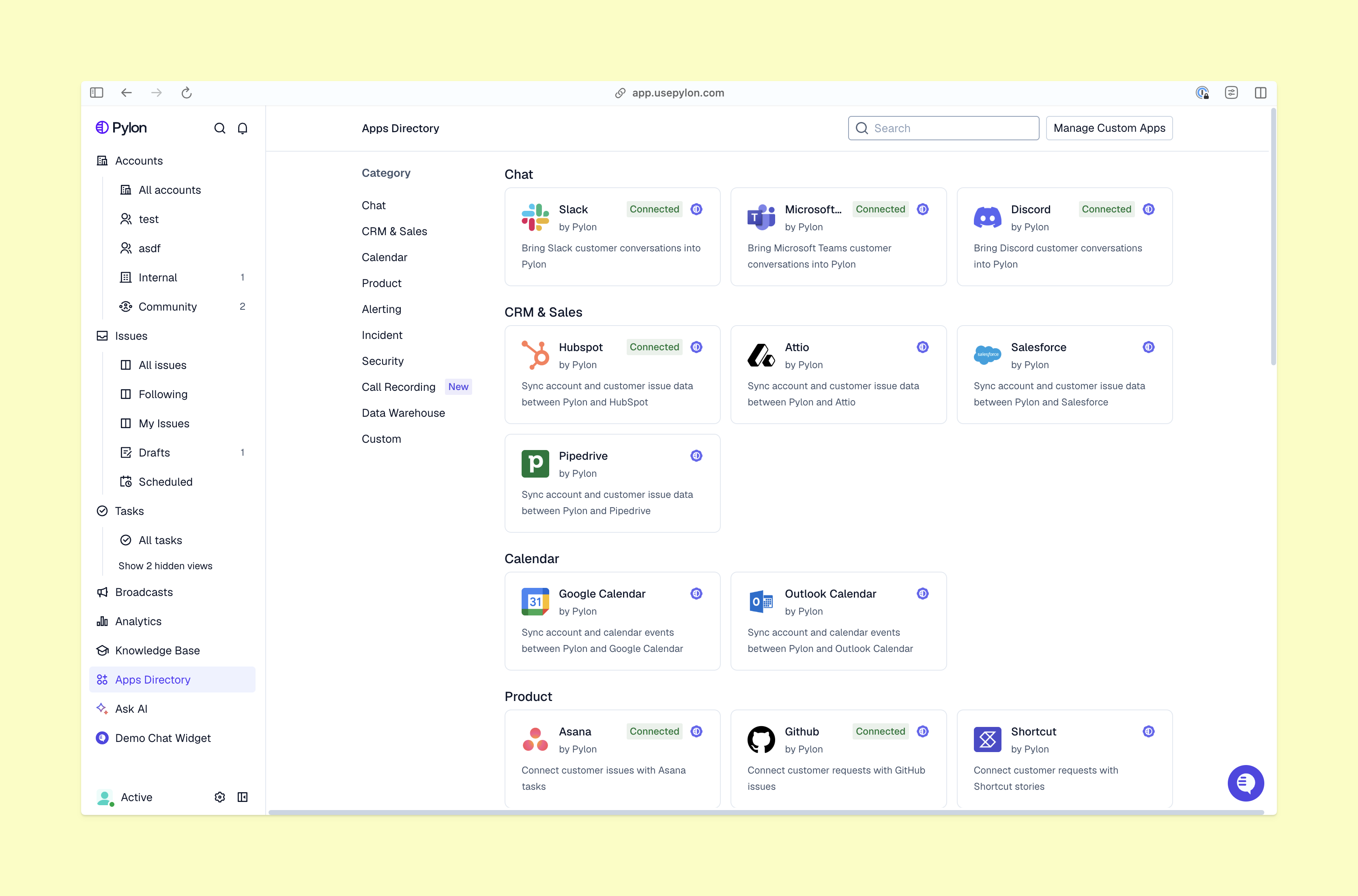
When you’re supporting complex software, a simple text box isn’t enough. You need a full chat support system built for authenticated users. If you’re looking for the best live chat for website support, you have to prioritize deep integrations and ticketing over basic conversational marketing.
A great B2B chat widget needs:
A chat widget is one layer of a broader omnichannel support strategy. When you connect in-app chat to the rest of your tools and layer in conversational automation, it becomes a channel that makes your whole support operation more effective.
Pylon is the modern B2B support platform that offers true omnichannel support across Slack, Teams, email, chat, ticket forms, and more. Our AI Agents and Assistants automate busywork and reduce response times. Plus, with Account Intelligence that unifies scattered customer signals to calculate health scores and identify churn risk, we’re built for customer success at scale.
A chat widget lives inside your product — customers reach it while actively using your app. Slack Connect channels are shared workspaces your customers already live in. Both create trackable issues in Pylon, but the right channel depends on where your customer prefers to communicate. Many B2B teams run both simultaneously.
Yes. Pylon lets you control widget visibility using user and account properties. You can hide it from free-tier users, show it only to accounts above a certain spend threshold, or surface different quick links depending on the customer's plan level.
Every chat conversation in Pylon becomes a trackable issue. You get full conversation history, assignee, status, and SLA tracking — the same as any ticket that comes in through Slack, email, or a ticket form.
You can configure custom support hours specifically for the chat widget, separate from your global Pylon support hours. Outside those hours, you can pair the widget with an AI agent to handle incoming questions automatically, so customers still get a response even when your team is offline.
Yes. Pylon offers mobile SDKs for embedding the chat widget directly inside your iOS or Android app, so customers get the same in-app support experience on mobile as on desktop.
Yes. Pylon supports deploying multiple AI agents — for example, one focused on billing questions and another on technical troubleshooting. Each agent draws on your knowledge base and training data to resolve issues before escalating to a human.
Pylon Workforce Management is available now. See it in action with a live demo.