
Did you know roughly 80% of workers still rely on email for business communication, even as tools like Slack dominate internal messaging?
Slack’s widespread adoption has improved communication and collaboration, but toggling between inboxes and channels leads to confusion, duplicate responses, and missed messages.
Slack email integration closes that gap by sending emails directly into Slack channels where teams communicate. This approach brings communication to one convenient location while speeding up response times and keeping updates from slipping through the cracks.
Email can be integrated with Slack using various methods. You can generate a channel-specific email address with Slack’s native Email app, install Gmail or Outlook add-ons, or use a powerful solution like Pylon to manage high-volume workflows and track conversions.
This guide breaks down everything you need to know about Slack email integration. Learn how to set it up, its benefits, best practices, and how Pylon uses integration to supercharge your customer support.
You can connect Slack and email using Slack’s native tools or third-party integrations. Below is a step-by-step guide highlighting how to route emails into Slack channels reliably and efficiently.
Decide which Slack channel should receive emails. You can use an existing channel, like #support-inbox, #sales-leads, or #alerts, or create a new channel specifically for collaborative emails.
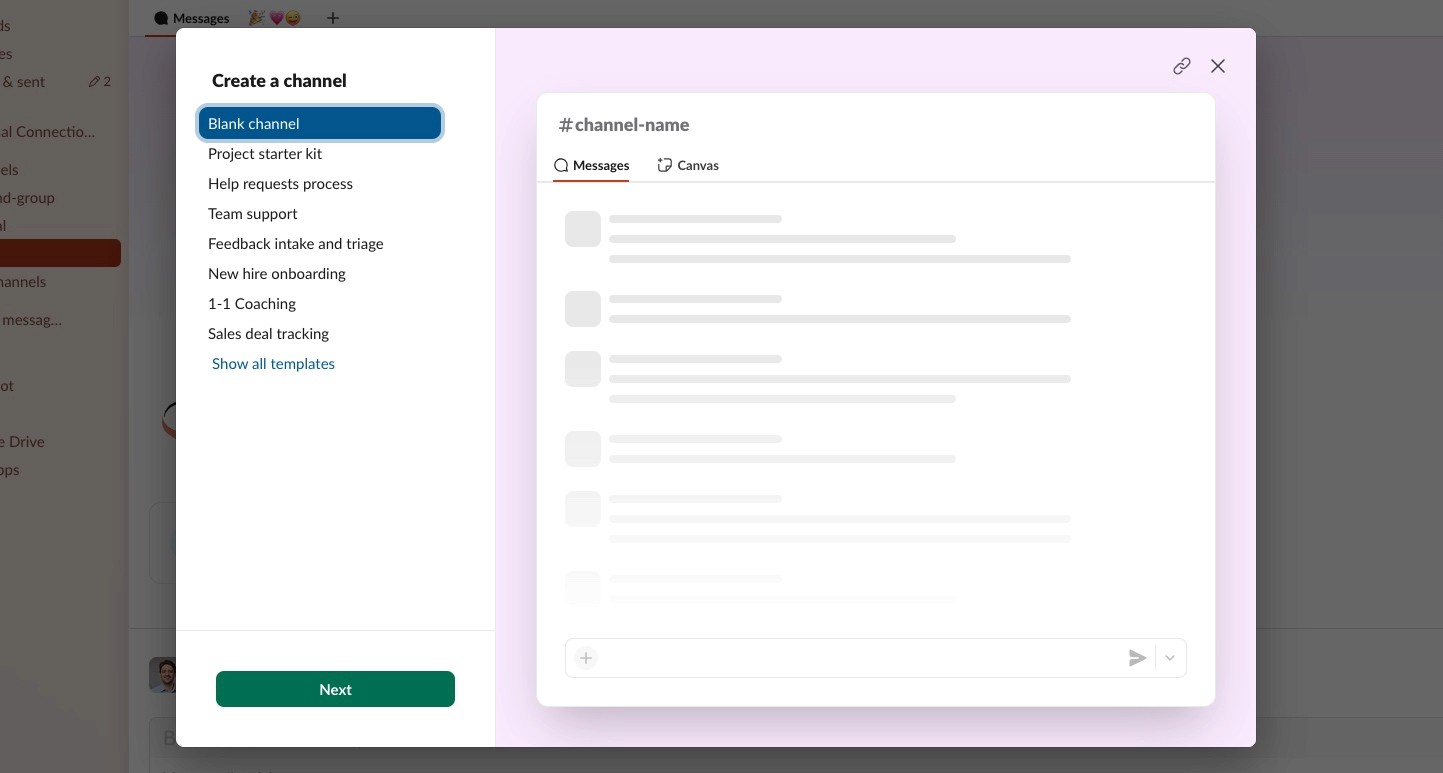
To create a new Slack channel:
Choose channel names intentionally to reflect the email’s purpose and avoid cluttering general communication spaces.
Once your channel is ready, connect it to an app that can receive emails.
To add an app to the Slack channel:
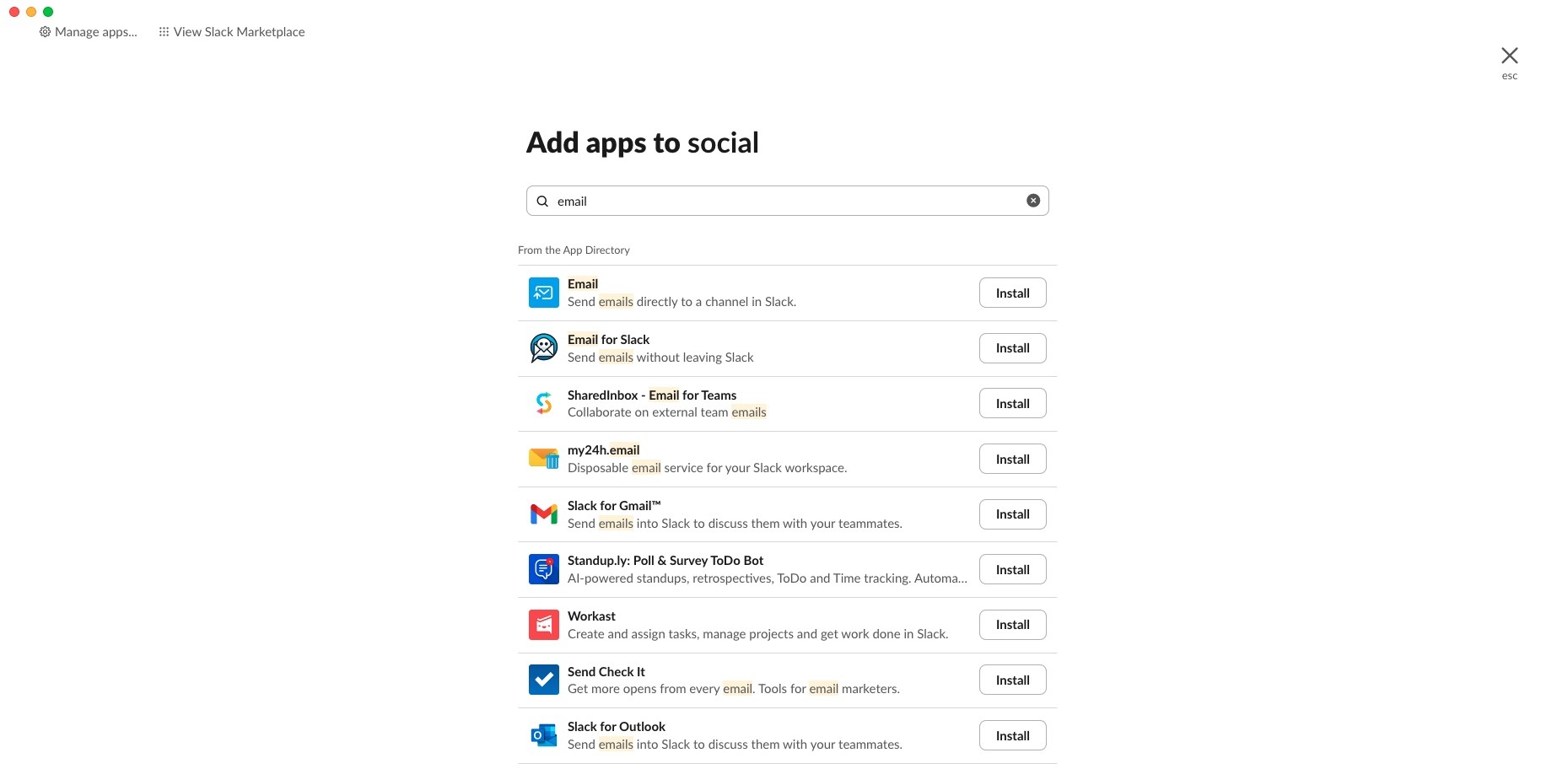
Search for and install one of the following:
If basic email forwarding is lackluster for your business team, consider Pylon. It connects with Slack to bring customer emails and support tickets into one place so your team can manage everything without leaving one platform for another.
Unlike less innovative tools, Pylon gives you complete conversation history, lets you assign messages to specific people, and track business progress to monitor work data. It turns Slack into a control center for more effective internal and external communication.
After you’ve added the Email app to your Slack channel and received a unique Slack-generated email address, the next step is setting up forwarding from your existing inbox. This automatically allows messages sent to that inbox to appear in designated Slack channels.
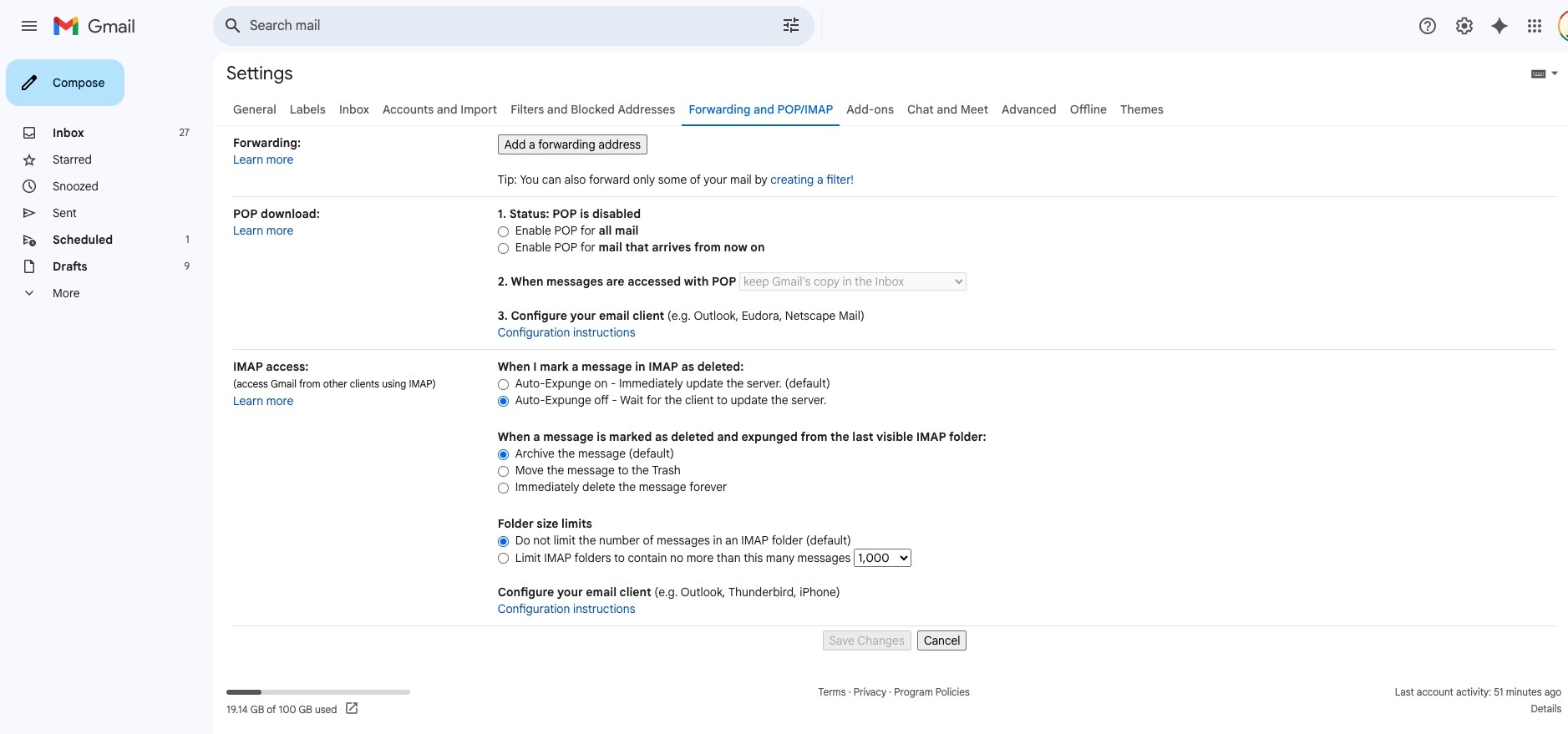
If you’re using Gmail:
Head to your account settings and click “See all settings.” Under the “Forwarding and POP/IMAP” tab, click “Add a forwarding address.” Paste in the Slack-provided email address. Google will send a confirmation code to the Slack channel, and once verified, you can return to the same table and choose to forward incoming messages to your Slack address.
If you’re using Outlook:
Go to “Manage Rules and Alerts” under the File menu and start a new rule for incoming messages. You can forward all messages or define conditions, like subject lines or sender addresses. Then select “forward it to people or public group” and enter your Slack email address. Save and enable the rule.
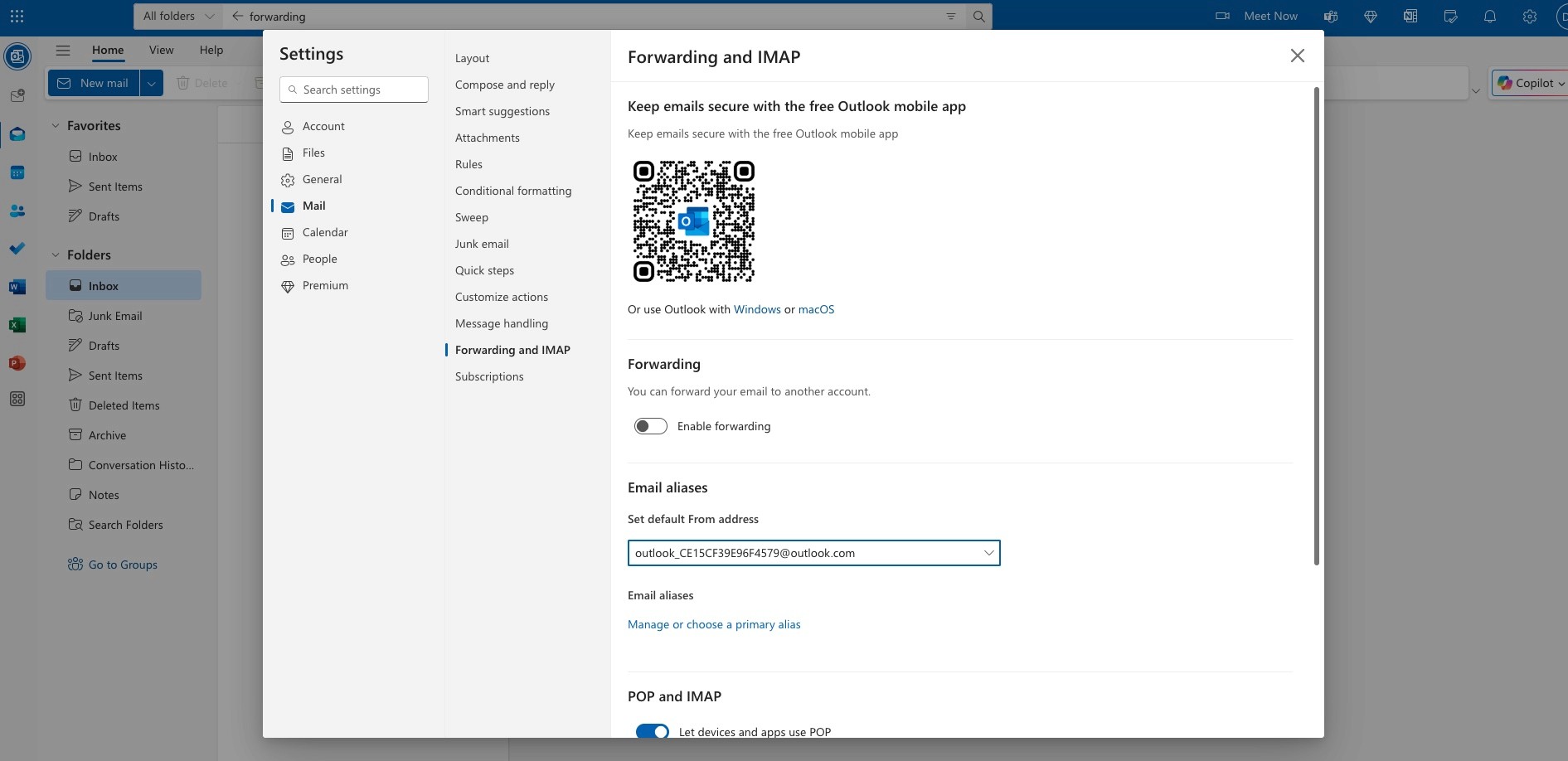
Forwarding works similarly in most email platforms. The key is verifying the Slack email address and ensuring the emails you want forwarded meet the necessary criteria before being routed into Slack.
Not every email deserves a spot in Slack. Forwarding your entire inbox quickly overwhelms your team, turning a helpful integration into background noise. Use filters to forward the messages that need visibility.
For complex logic, like forwarding flagged emails or parsing email content, tools like Zapier or Make offer customizable filters and automations. They can parse incoming emails and route them to different Slack channels based on predefined logic.
Once forwarding is configured, sitting back and declaring victory is tempting. However, before you roll it out across your team, test it. This ensures emails arrive in Slack with clean formatting and working filters.
Start by sending a test email from an account that matches your forwarding criteria. If you’ve filtered for support@, send from or to that address. If using subject-line filters, ensure your test message includes relevant keywords. The email should appear in the appropriate Slack channel within a few minutes.
How does the email look? Can your team easily identify who sent the email, what it’s about, and what needs to happen next? If using Slack threads of emoji reactions for triage, test those too. Confirm that ticketing tools or integrations, like Pylon or HelpScout, recognize the Slack message and log updates as expected.
If nothing appears or something is missing from the email, double-check your filters, verify the Slack email address, and confirm forwarding is enabled in your settings. A clean, well-functioning integration saves time, while a messy one creates confusion.
Once your integration is live, let your team know how it works and what to expect. A Slack channel with unexpected emails can feel chaotic unless everyone understands the purpose and process.
Start with a short announcement in the integrated channel:
You can also pin a short message or brief guide in the Slack channel with instructions or FAQs. Consider assigning a weekly “channel lead” who owns follow-up for teams with rotating responsibilities.
Clarity upfront prevents confusion later. It ensures your Slack email integration improves team responsiveness instead of becoming another ignored business feed.
Email still drives most communication for B2B teams, from client requests and contact forms to sales inquiries and complaints. But things get missed when those messages live in inboxes while internal collaboration happens in Slack. Teams waste time switching between platforms, forwarding emails, or screenshotting threads to get everyone on the same page.
With tools like Slack’s Email app or add-ons for Outlook and Gmail, emails arrive as fully formatted Slack messages, complete with sender, subject line, attachments, and content body. The entire team can see the message instantly, discuss it in a thread, assign follow-ups, and track progress without leaving Slack.
Integration offers many benefits, such as:
Before diving into setup, having a game plan is essential. The tips below will help your B2B team get the most from Slack email integration without creating chaos or extra work.
Slack’s built-in email app is available on paid plans, so check your current tier before setting it up. If you’re on the free plan or need advanced routing or analytics, consider external tools like Pylon or Zapier.
Most setups forward emails into Slack (one-way), but tools like Pylon allow replies from Slack that sync back to the original email thread (two-way). Choose whether you want Slack to be your full support hub or a visibility layer.
Simple alerts may only require Slack’s Email app, but more complex workflows call for third-party solutions. Zapier, Make, or Pylon can automate routing, tracking, and notifications at high volumes.
Decide if Slack will be where emails get handled or just where they get seen. If Slack is your triage hub, archive or monitor the original inbox so no requests fall through the cracks.
Forwarding every email clutters Slack channels quickly. Use filters and tools to route actionable messages, like those sent to support@ or flagged with specific keywords.
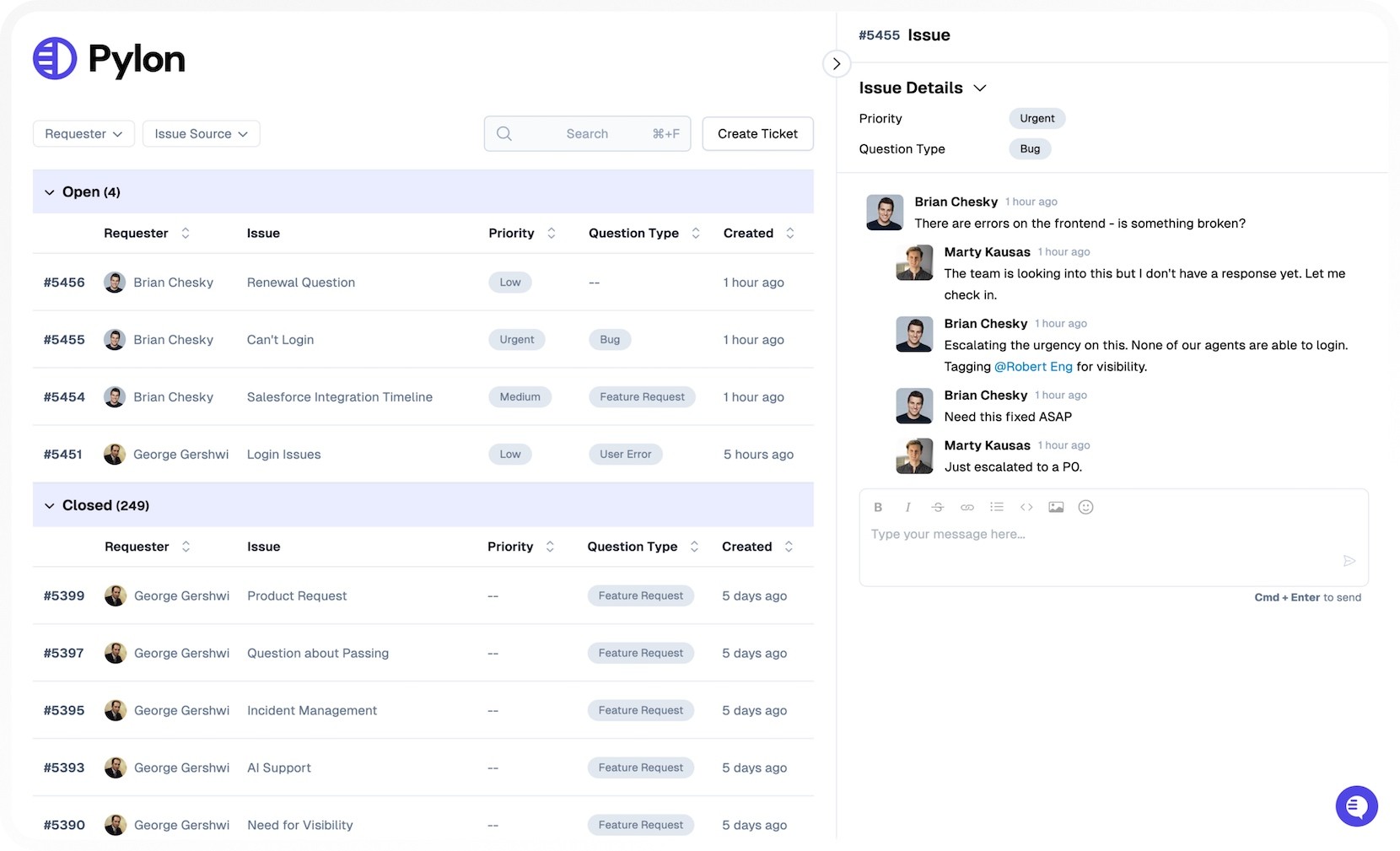
Pylon is built for B2B customer support teams that use Slack and other channels for support. It bridges the gap between internal chat and external communication by automatically turning Slack messages into trackable issues.
What makes Pylon especially powerful is how seamlessly it connects Slack, email, and other tools your business depends on. Messages that start in email are transformed into structured conversations in Slack, complete with tracking, metadata, and the ability to assign ownership.
Behind the scenes, Pylon syncs with platforms like Salesforce and HubSpot, creating one connected conversational ticketing workflow that reduces manual handoffs and improves visibility.
By managing Slack and email in one unified interface, Pylon gives B2B teams faster response times, better collaboration, and fewer missed messages. Whether scaling customer support or coordinating across departments, Pylon makes your Slack workspace feel like a full-service help desk without the bloat or complexity of traditional ticketing systems.
Pylon Workforce Management is available now. See it in action with a live demo.