
In today’s hybrid work environment, many companies use both Slack and Microsoft Teams.
In fact, 66 percent of organizations using Microsoft Teams also use Slack in some capacity. Others stick with Slack internally but frequently work with clients or partners who use Teams, home to over 300 million daily active users.
This overlapping toolset often leads to fragmented conversations, duplicated work, and wasted time switching between platforms. When messages are siloed, communication breaks down, and productivity suffers.
That’s where Slack Teams integration comes in. With the right configuration, you can reduce friction between platforms, improve responsiveness, and ensure both internal and external stakeholders stay aligned.
Some Slack Teams integrations require native tools or app connectors, while others rely on third-party automation or bots.
This guide walks through the key methods for connecting Slack to Microsoft Teams and best practices to help your organization streamline communication, reduce confusion, and get the most out of both platforms.
There are multiple ways to link Slack and Microsoft Teams depending on your use case, technical requirements, and budget.
Some companies only need to coordinate meetings across platforms, while others require real-time chat between Slack and Teams or full message synchronization across departments.
The best integration method often depends on who you're communicating with: internal teammates, external partners, or a mix of both.
Below are the most common methods B2B teams use to bridge the gap, each offering different levels of functionality depending on your communication goals.

Slack offers a native Microsoft Teams Calls integration designed to streamline meeting scheduling and video calls between platforms.
While this method doesn’t allow direct message syncing between Slack and Teams channels, it does let Slack users launch and join Teams meetings without leaving Slack.
Step 1: Install the app. Go to the Microsoft Teams Calls app page in Slack and select “Add to Slack.” Admin permissions may be required depending on your workspace settings.
Step 2: Connect to Teams. Once installed, sign in to your Microsoft Teams account through the Slack app to authorize the connection.
Step 3: Start a Teams call in Slack. Use the /teams-call slash command in any Slack conversation to generate a new Microsoft Teams meeting link.
Step 4: Join and collaborate. Anyone in the channel can select the link to join the Teams meeting, whether they’re on Slack or Teams.
Limitations: This approach only connects Slack and Teams for meetings. It doesn’t enable messaging or file sharing across platforms. It’s best for teams who collaborate externally and want an easy way to manage video calls, but isn’t a full solution for running customer support over Slack or Teams.
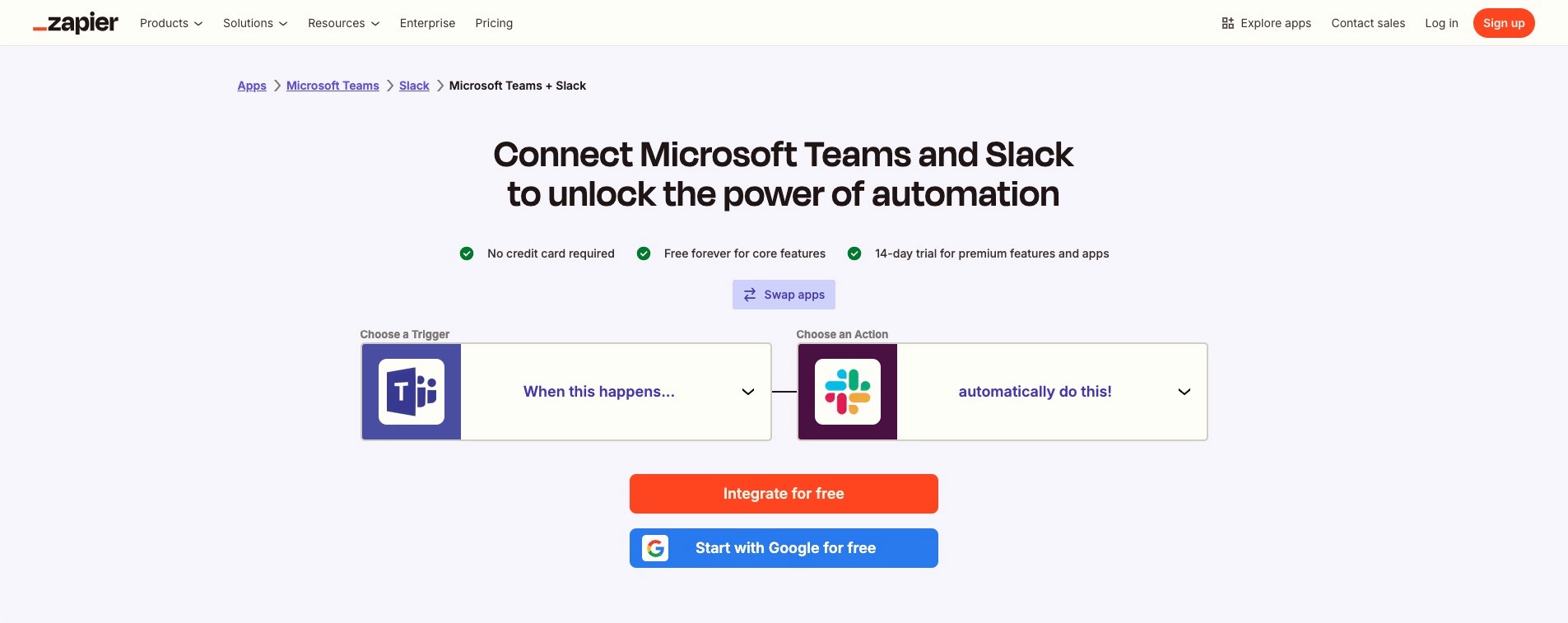
Automation platforms can help you sync data or messages between Slack and Teams using workflows. These tools serve as a bridge, enabling customized cross-platform interactions with minimal manual work.
Popular options include Zapier, Make, and Workato, which offer prebuilt integrations and visual builders to automate communication flows.
Step 1: Choose a tool. Select an automation platform that supports both Slack and Microsoft Teams. Consider factors like security, scalability, and cost, especially if you're automating high-volume activity.
Step 2: Authenticate Slack and Teams. Connect both platforms to your automation tool using OAuth or API tokens. You may need admin permissions on each account to grant access.
Step 3: Create a workflow. Set up a rule-based flow, such as “When a message is posted in Slack Channel A, send it to Teams Channel B.” You can use filters to limit which messages sync.
Step 4: Map message details. Customize which fields carry over, including sender name, timestamp, message content, or links. You can also add static text or formatting to clarify that the message was relayed.
Step 5: Test and activate. Run a few test messages to confirm everything works as expected. Once validated, enable the workflow for ongoing synchronization between platforms.
Two-way sync is possible by creating mirror workflows in the opposite direction. However, keeping these in sync may require ongoing adjustments.
Limitations: Automation tools rely on channel names, tokens, and app permissions. If someone renames a channel or disconnects an integration, it can break the workflow. Also, support for file attachments, threads, and edits/deletions may be limited; some manual refinement might be required for full fidelity.
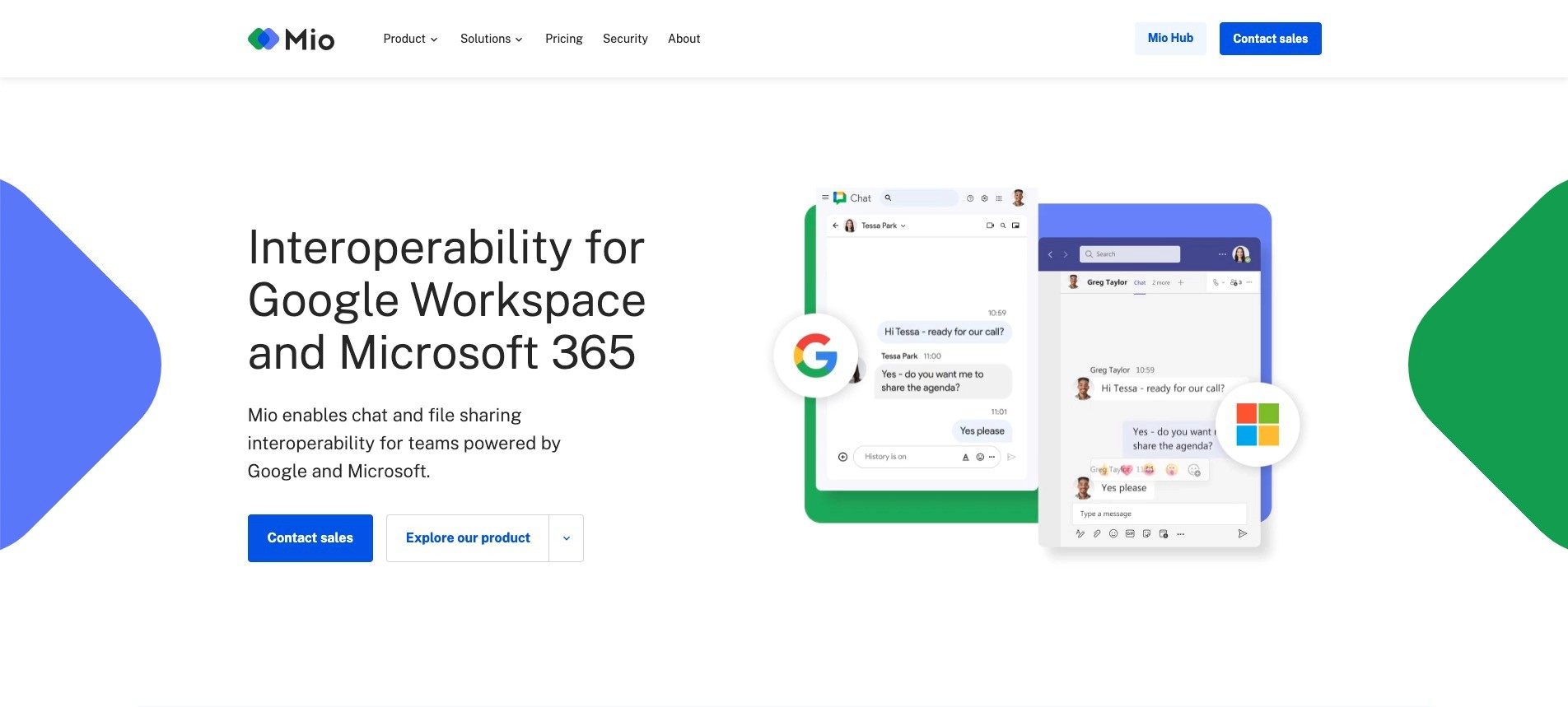
Connector bots are third-party apps specifically built to enable chat between Slack and Teams.
These bots act as intermediaries, relaying messages across mapped channels and facilitating real-time alignment among cross-platform teams.
Tools like Mio, Mattermost, and Sync are popular options for this type of integration.
Step 1: Select a connector service. Evaluate connector bots based on pricing, supported features, admin controls, and compliance standards. Mio, for example, is widely used for enterprise-level chat syncing.
Step 2: Install the apps. Install the connector bot app in both Slack and Microsoft Teams. Admin authorization is typically required for both platforms.
Step 3: Link channels. Use the connector’s interface to match a Slack channel with its corresponding Teams channel. Some tools offer automated discovery or bulk mapping to speed up the setup.
Step 4: Test cross-posting. Send test messages in each channel to confirm they appear correctly on the opposite platform. Confirm that usernames, timestamps, and formatting are retained.
Limitations: Slack Teams connector bots may incur additional costs, especially at scale. Some organizations may require IT approval or security reviews before installation. Be aware that certain platform-specific features, like threads, message edits, and emoji reactions, may not sync perfectly depending on the bot.
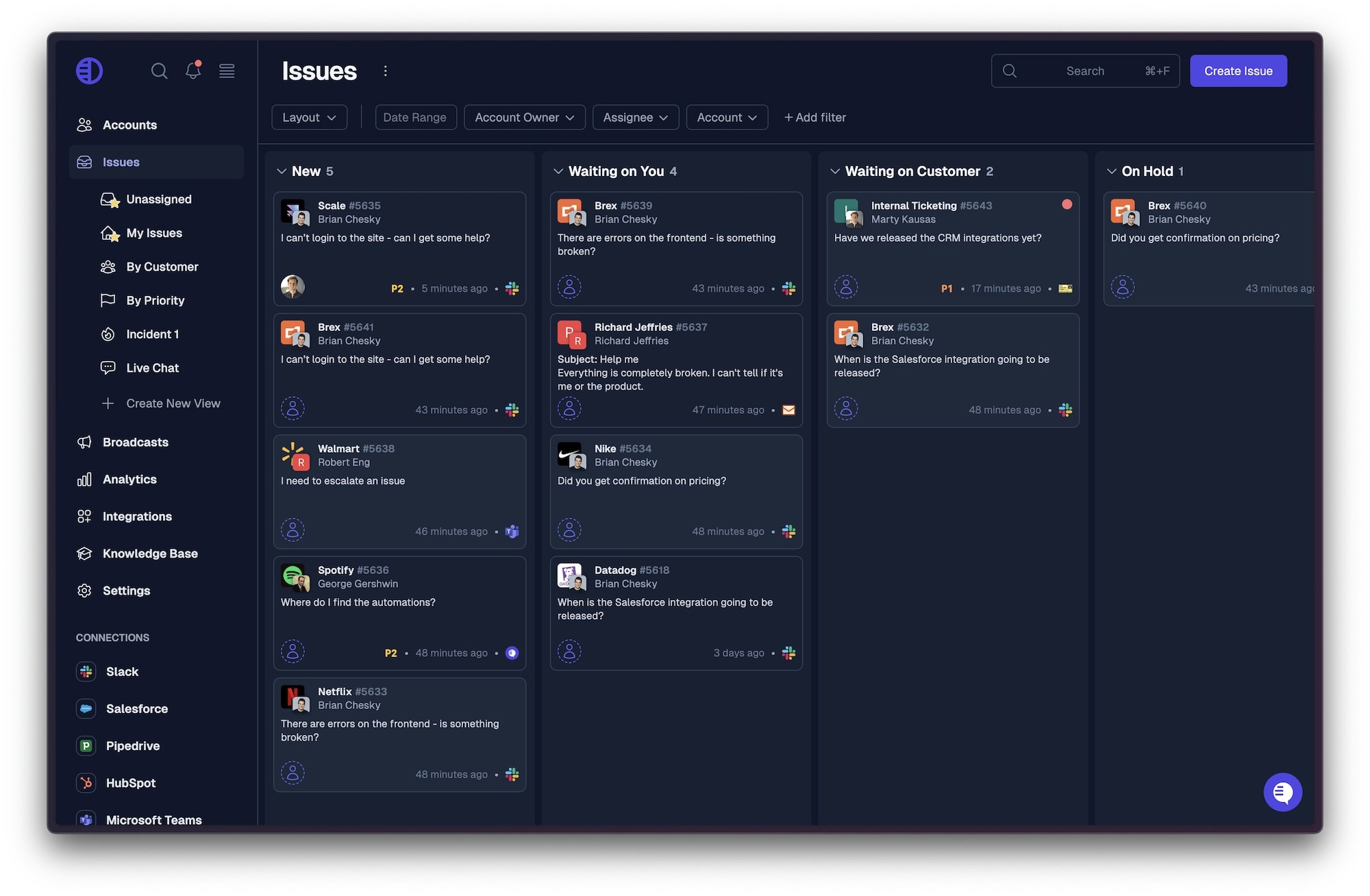
For B2B organizations managing conversations across multiple channels and teams, Pylon provides a more innovative, unified approach to communication.
Rather than juggling bots, workflows, and apps, Pylon helps teams manage Slack, Microsoft Teams, and email from a single platform.
So instead of integrating Slack and Teams so you receive messages from one in the other, Pylon brings messages from both platforms into a unified inbox that also connects with email, live chat, and more.
It’s built for companies that need visibility, consistency, and speed when handling internal and external messages.
Pylon’s tools reduce communication gaps, eliminate duplicative tasks, and ensure teams stay aligned, no matter where messages originate.
This is especially valuable for B2B customer support teams who rely on conversational ticketing across both Slack and Teams environments.
Key features of Pylon include:
Pylon consolidates customer support conversations across Slack, Teams, and email into one shared space. This lets team members triage, respond, and assign messages without switching platforms.
It reduces the risk of missed communication and gives your team a central place to manage every external and internal conversation.
Teams can automate standard processes like tagging, routing, or escalations to reduce manual work and streamline operations. This helps maintain consistency and speeds up resolution time across multiple communication channels.
Workflow automation ensures that repeatable actions are handled efficiently, allowing agents to focus on higher-value tasks.
Pylon connects fragmented platforms into a unified workspace, making it easy to track conversations over time and ensure nothing gets lost between Slack and Teams.
It gives teams complete visibility across accounts, projects, or customers. This centralized view reduces duplicated effort and improves message continuity.
Assign messages, track ownership, and monitor response times in one place using built-in reporting and assignment tools.
Clear roles and visibility help keep everyone aligned, especially in fast-moving B2B environments. Managers can quickly see who’s responsible for what and where bottlenecks may exist.
With all messages in one place, teams can comment internally, resolve tickets faster, and avoid repeating work. Built-in collaboration features make it easy to share context and coordinate responses without jumping across tools. No more forwarding screenshots between Slack and Teams or missing updates buried in one platform.
Whether you're trying to consolidate support channels or make cross-platform teamwork more efficient, Pylon delivers the flexibility and control that modern B2B teams need. Instead of managing multiple connectors, Pylon offers a single, centralized solution that works across your stack.
Integrating Slack and Teams is more than just syncing tools; it’s about creating a unified communication strategy that supports your workflows, team structure, and collaboration style. If done well, it eliminates silos, reduces friction, and boosts cross-functional alignment.
The following best practices will help your organization get lasting value from your Slack Teams integration.
Pylon Workforce Management is available now. See it in action with a live demo.