
Tagging AI in Slack for support gives teams a way to pull relevant information into one conversation. A question pops up in Slack, but the information you need to answer it lives in an old support ticket or customer conversation. With Pylon’s Slack Agent, teams can tag @Pylon to find relevant context and cited answers without switching between tools or creating a formal support ticket.
In this guide, we’ll look at why support information scatters, how AI assembles context before a ticket exists, and how to set up Pylon’s Slack integrations.
Using Slack as a ticketing system makes it easy for customers and support teams to communicate with one another. But agents have to look for information in other systems to solve those customer problems.
The bottleneck might not be missing information, but how difficult it is to find valuable context for each conversation instead. If your customer support tech stack includes account data in a CRM tool, old tickets in help desk software, and troubleshooting guides in internal knowledge bases, then it could take a significant amount of time to find the right answer to a simple question.
Direct access to account context in Slack makes it easier to triage incoming questions and decide what needs attention first. Teams can resolve requests in the moment with a faster time to resolution, then follow up sooner.
Without a clear understanding of existing issues and customer context, support team members risk duplicating work and unnecessarily escalating requests. AI agents give teams a way to manage scaling query volume efficiently. With @Pylon, agents and human team members can check existing records and account context before deciding whether to create a new ticket or follow up on an open one.
When an AI agent can give a permission-aware answer (with sources backing up claims), it’s less likely the same questions will be asked again. Team leaders spend less time reviewing the same requests, team members scale high-volume support, and both have more time to prioritize issues that need closer attention. When an escalation is necessary, the team already has relevant context necessary for an efficient handoff.
Team members your admins have enabled can ask the Slack Agent questions directly through direct message or in an internal Slack channel by tagging @Pylon. If the agent isn’t already in the channel, Slack prompts the user to add it.
Be aware that Pylon’s Slack Agent doesn’t support customer-facing queries and can only be tagged in internal channels.
In Slack, that AI agent can tap into your connected resources, like your CRM and knowledge bases, to answer questions. It can also dig into previous internal and customer conversations. Admins control what the agents can access, while individual users keep their existing Pylon permissions.
Let’s say a customer follows up on an integration bug they reported earlier in the week. Rather than digging through old tickets, a support team member can ask @Pylon for the latest status. The AI support agent retrieves the relevant context so the team can pick up the conversation without repeating every step of the original investigation.
Pylon’s Slack Agent gives teams access to internal context directly in Slack, so anyone on your team can get answers and take action without switching tabs.
Setting up @Pylon is simple: Connect your Slack workspace, configure agent permissions, and add it to the appropriate Slack channels.
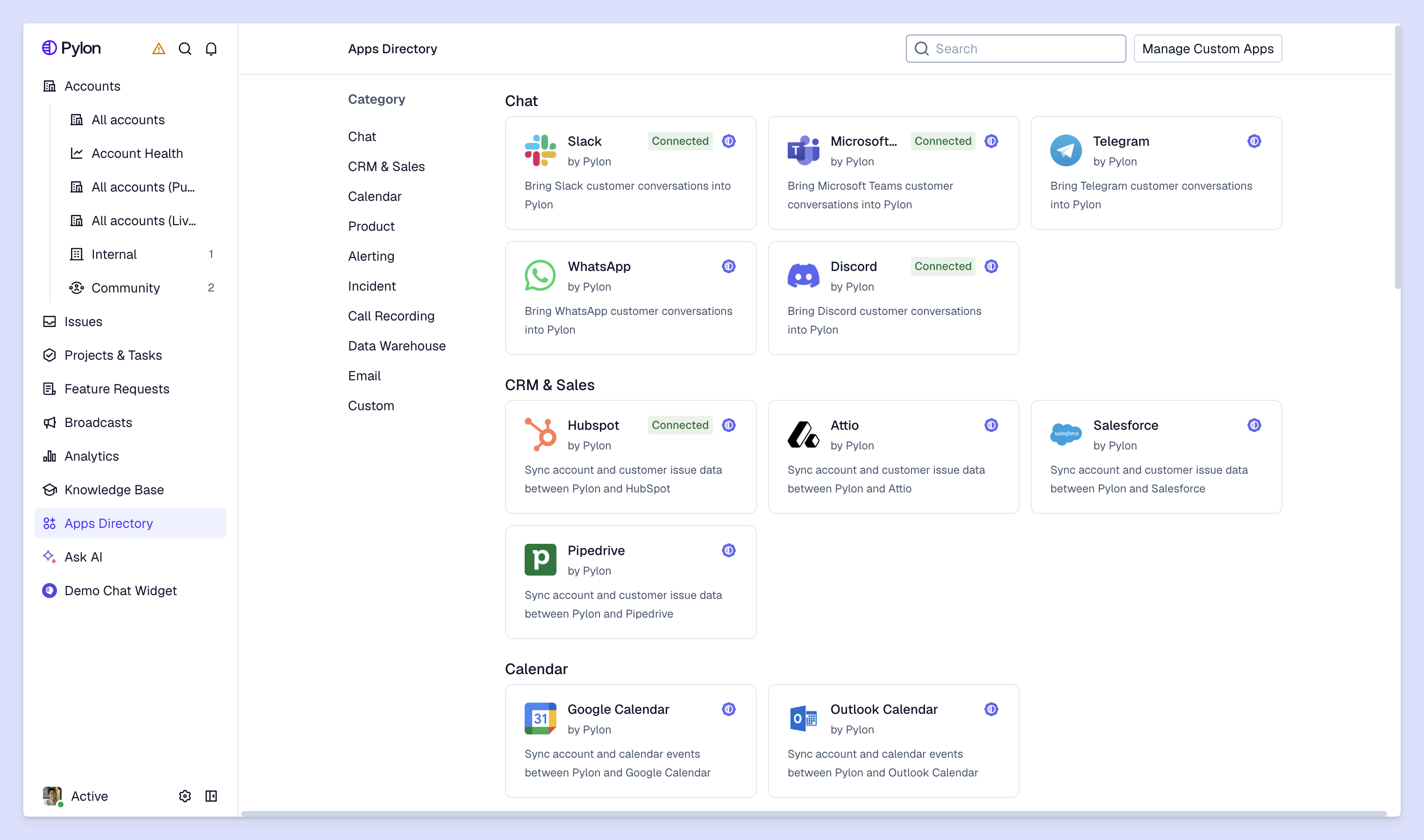
Pylon’s Slack Agent is available on every plan (agent usage requires credits), but before setup, confirm that the team member installing the agent has admin permissions in both Pylon and Slack. To connect the two, open the Apps Directory in Pylon and select the Slack integration.
The Slack Agent needs to be turned on in Pylon’s admin settings before it can be tagged in any channel. Open the Slack Agent settings in Pylon’s admin menu to configure what the agent can access and do.
Admins can link tools that let @Pylon update tickets or create and edit knowledge base articles. You can also use natural language to run Skills that handle repeatable support workflows, like pulling the contents of an account’s most recent ticket. The Slack Agent follows each user’s Pylon permissions, so team members can only access information they’re authorized to see.
Open the internal Slack channel where your team wants to use the agent and type “/invite @Pylon.” Select your organization’s bot, which may appear under a custom name or logo or as “Pylon team.” Confirm when the bot has joined the channel, then encourage everyone to start tagging @Pylon to access information directly through Slack.
Once the bot is in the channel, tag @Pylon in a thread and ask a support question. The Slack Agent can retrieve relevant tickets, account history, and knowledge base content based on the user’s permissions. Agents can also ask @Pylon to take actions without leaving Slack, such as updating an issue’s status or assignee, as long as the user is authorized to make them.
@Pylon gives employees faster access to existing context, so they can quickly get answers to their questions instead of adding another ticket to your support team’s queue. Configure the Slack Agent around your existing workflows, with admin controls over which tools and actions it can access. For growing support teams, Pylon’s AI agents offer more ways to manage conversations that unfold across channels and handle repetitive requests before a ticket ever exists.
Pylon is the Agentic Support Platform built for B2B support teams. It brings conversations across Slack, Teams, email, chat, and other channels into one place, giving AI the context to help resolve customer issues and continuously improve your knowledge base. Pylon can identify missing or outdated documentation, generate new content from real support conversations, and help your team keep knowledge accurate as your product evolves.
Check that you’re using the correct chatbot and that it’s been added correctly to an internal channel. If the bot doesn’t work, verify that the channel is properly linked to Pylon. For problems with direct messages, check in with an admin. The Slack app may need to be updated, reinstalled, or reauthorized.
It’s worth distinguishing how to enable Slack AI from configuring Pylon’s Slack Agent. Slack’s AI tool is a native workspace feature focused on finding and summarizing information within Slack. @Pylon is a purpose-built support feature that helps you find answers across different programs within your tech stack.
No. Pylon’s Slack Agent works for internal Slack channels and DMs; customers can’t trigger the AI agent in Slack Connect channels. For customer-facing conversations, Pylon offers a separate Support Agent that can independently answer customer questions from public knowledge instead.
@Pylon can update issue statuses, change assignees, and create or revise knowledge base articles. Agents can also log customer account context without opening Pylon. Specific actions depend on the tools admins enable for each user.
Pylon Workforce Management is available now. See it in action with a live demo.