You can connect Claude to Pylon in a few minutes through the Pylon MCP server. In Claude, add Pylon from the Connectors Directory and sign in with your Pylon account. In Claude Code, it's one command. Either way, Claude works on the same issues, accounts, contacts, and knowledge base you already see in Pylon, with your permissions.
This is the full setup guide. For a quick overview, see the Claude integration page and the Pylon MCP server page. Using ChatGPT instead? See How to connect Pylon to ChatGPT with MCP.
What you need before you start
- A Pylon workspace. The Pylon MCP server is listed on Professional, Advanced, and Enterprise on Pylon pricing.
- The MCP Access permission. The standard Member and Admin roles include it (roles and user management). Viewer and Integration users can't authenticate and see an "Authorization failed" error, so ask your workspace admin to change your seat type in Settings > Workspace > Users.
- Permission for each action. The MCP server can't return data you can't already see, or write anything you can't write in the Pylon UI (Pylon MCP docs).
- A Claude plan that allows connectors. Anthropic lists custom connectors on Free, Pro, Max, Ultra, Team, and Enterprise plans, and Free users are limited to one custom connector. On Team and Enterprise plans, an Owner or Primary Owner adds the connector for the organization first (Anthropic: custom connectors).
Step 1: copy your Pylon MCP URL
- In Pylon, open Settings > AI Controls > MCP Server.
- Copy your workspace's regional MCP URL from Installation.
The published server URLs:
- US:
https://mcp.usepylon.com - EU:
https://mcp.eu.usepylon.com
Auth is OAuth 2.0 or an API token. Transport is Streamable HTTP, stateless with no server-side sessions. Actions run as the signed-in user or the token's identity, with that identity's current role and permissions (Pylon MCP docs).
Step 2, option A: add Pylon from Claude's Connectors Directory
This is the fastest path in Claude on the web and desktop (Claude integration page):
- Open the Connectors Directory. Click the + button in the lower left of your chat, or type /, then hover over Connectors and select Manage connectors. Click + next to Connectors to open the directory. You can also get there from Customize > Connectors.
- Find Pylon. Browse by category or scroll the list, select Pylon, and click Connect or Install. On Claude Team and Enterprise plans, an Owner or Primary Owner adds the connector for your organization first.
- Authorize. A sign-in window opens. Sign in with your Pylon account and approve access.
Step 2, option B: add Pylon as a custom connector
Use this if your organization prefers to manage the connector itself, or you need the EU URL. Steps follow Anthropic's current guide (custom connectors).
On Team and Enterprise plans, an Owner or Primary Owner (on Enterprise, also anyone with a custom role that includes Manage access to Libraries):
- Goes to Organization settings > Connectors.
- Clicks Add, hovers over Custom, and selects Web.
- Names the connector "Pylon" and enters your regional Pylon MCP URL, then clicks Continue.
- Reviews the authentication settings Claude detected and picks how people connect under Authentication. For Pylon, use a sign-in option so each person authorizes with their own Pylon account. Pylon's help center says you don't need your own OAuth client ID or secret (connecting to the Pylon MCP server).
- Clicks Add.
Then each member goes to Customize > Connectors, finds Pylon, and clicks Connect to sign in.
On an individual Pro or Max plan, go to Customize > Connectors, click + Add, then Add custom connector, and follow the same naming, URL, and authentication steps.
Once a connector is set up, you can turn it on or off for a conversation from the + button in the lower left of the chat, under Connectors.
A note on API tokens here: Claude's custom connector form can send fixed request headers, such as a bearer token. Anthropic notes that a shared credential gives everyone who uses the connector that credential's access. For people working in Claude, OAuth keeps each person acting as themselves, which is how the Claude connector signs in.
Step 2, option C: connect Claude Code
Run this in your terminal (Claude integration page, connecting to the Pylon MCP server):
claude mcp add pylon --transport http https://mcp.usepylon.com/
Then run /mcp inside Claude Code, select pylon, and sign in. EU workspaces use https://mcp.eu.usepylon.com instead. --transport http selects MCP's Streamable HTTP transport. The connection to Pylon stays HTTPS.
Headless runs and scripts. Claude Code can't run the OAuth sign-in in a claude -p or Agent SDK run, so complete sign-in from an interactive session first (Claude Code MCP docs). For a worker that never signs in interactively, use a Pylon API token instead. Pylon accepts it as an Authorization: Bearer <API_TOKEN> header on the regional URL, and the token must belong to the same region (Pylon MCP docs). Claude Code adds headers with --header:
claude mcp add --transport http pylon https://mcp.usepylon.com --header "Authorization: Bearer <API_TOKEN>"
Only Admins can create API tokens in Pylon (roles and user management). A token with its own identity uses the role assigned to it. A token linked to a teammate or bot uses that user's current role. Either way the identity needs MCP Access, and any IP allowlist on the token also applies to MCP requests. If Claude Code has a header configured and Pylon rejects it, Claude Code reports a failed connection rather than falling back to OAuth.
What Claude can do once it's connected
Tools come from the Pylon MCP docs, which have the full list. Highlights:
- Issues: search and fetch issues and their messages, create and update issues (including up to 100 at once), snooze, post internal notes, send customer replies, manage followers and internal threads, and link Linear, Jira, GitHub, Asana, or Shortcut tickets. As of Nov 9, 2026, MCP search also matches issue body text, not just titles (changelog).
- Accounts and contacts: search, create, and update within your permissions.
- Knowledge base: search and read articles. Drafting and publishing need the same edit and publish permissions as the Pylon knowledge base editor.
- Macros, tags, and triggers: read and manage within your permissions. Field values on issues and accounts can be updated, and custom field definitions can be read.
Some tools need a plan feature or add-on:
- Account notes, tasks and projects, and call recordings require Account Intelligence.
- Feature request tools require the Feature Requests plan feature.
Customer replies can't be unsent. A reply goes straight to the customer on the issue's channel, like Slack or email. AI tools are instructed to show you the exact message and get your approval before sending, and most also ask you to confirm each reply.
Rate limits apply per tool and per organization. A throttled call returns a JSON-RPC error with code -32000 that says how many seconds to wait. If you run Claude Code pipelines that call Pylon tools quickly, wait that long before retrying.
Good first workflows
Start read-only, then add writes you're willing to approve. Pylon's help center suggests these (connecting to the Pylon MCP server):
- Debug an issue end to end. In Claude Code, prompt "debug this" with a Pylon issue link and put up a PR for the fix through Claude Code's own GitHub connection.
- Write a product spec. Feed Claude a set of related issues and have it draft a spec in Notion from the evidence.
- Ad hoc analysis. Ask about a customer and combine Pylon data with other connected tools like Notion or Linear.
Then try a write you approve: "Draft a reply to issue 1842, but don't send it until I say so."
When the connection drops
OAuth sessions expire on a schedule that depends on the client, from a few hours to several days. To reconnect, go to Settings > Connectors in Claude and click Connect next to Pylon, or run /mcp in Claude Code and sign in again. If you have to reconnect several times a day, contact Pylon support (connecting to the Pylon MCP server).
Claude over MCP and Pylon's own agents
Claude over MCP is a great fit for one person's analysis and engineering work. Pylon's agents work inside Pylon alongside your team: Assist Agent investigates and acts for your team, Support Agent resolves customer questions across channels and brings in people when judgment is needed, Slack Agent answers and acts from Slack, and Automations run on events or schedules (Pylon Facts). Agentic features run on credits, available pay-as-you-go or as a committed plan, and you can buy more in Pylon anytime. Skills are included on every plan (Pylon pricing).
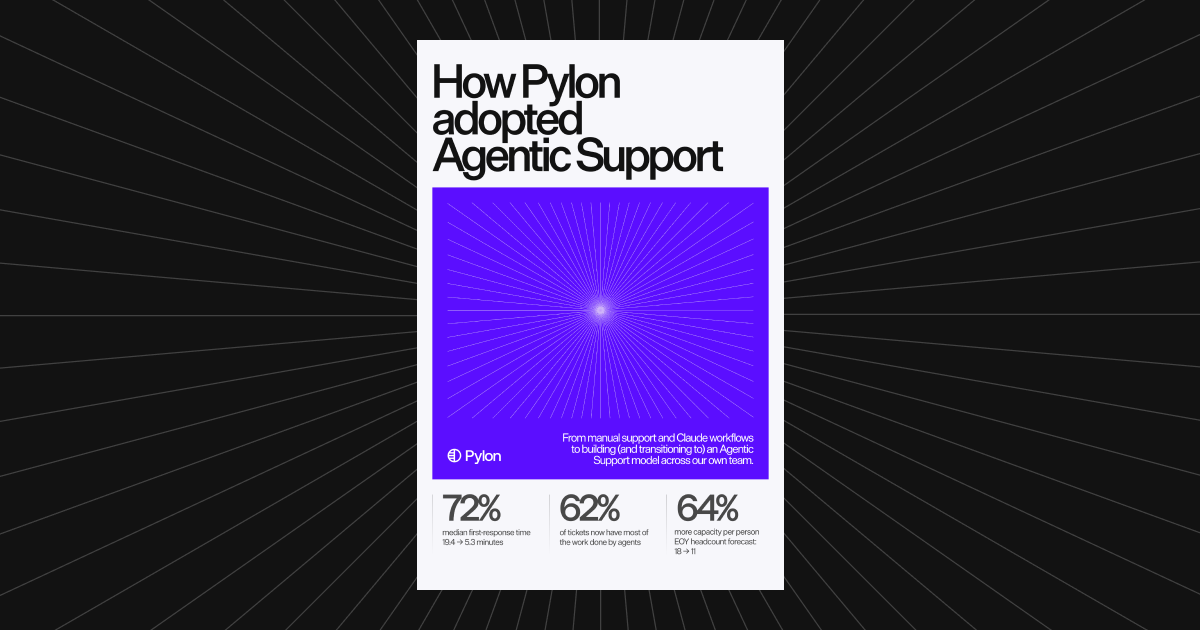
Our own support team made that move: from manual work and Claude workflows to agentic support. Median first-response time fell 72%, from 19.4 to 5.3 minutes (How Pylon adopted Agentic Support).
Want to see Pylon on your own issues? Schedule a demo.
FAQ
Does Pylon work with Claude over MCP?
Yes. Add Pylon in Claude from the Connectors Directory or as a custom connector, or run claude mcp add in Claude Code. Every path connects to the Pylon MCP server, and Claude acts with your normal Pylon permissions.
Where do I find my Pylon MCP URL?
Open Settings > AI Controls > MCP Server in Pylon and copy the regional URL from Installation. The published server URLs are https://mcp.usepylon.com for US workspaces and https://mcp.eu.usepylon.com for EU workspaces.
Who can connect Claude to Pylon?
Connecting needs the MCP Access permission, which the standard Member and Admin roles include. Viewer and Integration users can't authenticate. Each tool still checks the permissions for its operation, so Claude can't see or change anything you can't in Pylon.
Can I use an API token instead of OAuth?
Yes. The Pylon MCP server accepts OAuth 2.0 or an API token. The Claude connector signs in with OAuth. Claude Code and other clients that support custom authorization headers can send an existing Pylon API token as a Bearer header, as long as the token's identity has MCP Access.
Can Claude send a customer reply from Pylon?
Yes, through send_issue_reply, if your permissions allow it. A reply goes straight to the customer on the issue's channel and can't be unsent, so AI tools are instructed to show you the exact message and get your approval first.
Is the Pylon MCP server on every plan?
Yes. Pylon's pricing page lists the Pylon MCP server on Professional, Advanced, and Enterprise. Some tools also need a plan feature or add-on, such as Account Intelligence for tasks, projects, account notes, and call recordings.