Updated January 30, 2026 | 14 min read
As you build out and maintain your help center, knowledge base (KB) templates are pre-built article formats that give your team a consistent starting point for documentation. Instead of working from a blank page, you have structure and sections already laid out — so you can focus on writing high-quality support content instead of figuring out how to organize it.
This guide covers the core templates B2B support teams typically use, how to write articles that customers actually find helpful, and how to roll out templates across your team.
Knowledge base templates are pre-built article formats that give your support team a starting point for documentation. Think of them as fill-in-the-blank frameworks — the structure, headers, and section prompts for knowledge articles are already laid out, so you can focus on writing helpful content instead of figuring out how to organize it.
Without clear templates, your knowledge base becomes inconsistent, especially as your team grows and multiple people get involved in content creation. Consistency across your KB makes articles faster to write and easier for customers to read.
A templated structure also helps you remember what to include in each article. A good troubleshooting template reminds you to list out symptoms, solution steps, and what to do if the fix doesn't work.
Your knowledge base serves different audiences with different needs. Here are 3 main article types broken down by audience and goals.
Internal articles document information that only your support team needs to see. You might write about escalation procedures, known bugs with temporary workarounds, or detailed product architecture that helps your team answer technical questions.
Since customers never see internal knowledge content, you can include context that's helpful for your team but not ready for public documentation — like upcoming features or engineering explanations.
Customer-facing articles live in your public help center, where customers can self-serve when they need support with common product issues.
Your goal here is self-service. The better your customer-facing documentation, the fewer repetitive questions your team handles. Customers get instant answers, and your team spends time on complex problems instead of explaining the same feature for the tenth time.
Technical documentation serves developers and technical users who need implementation details. API references, SDK guides, and integration walkthroughs usually fall into this category.
This audience expects more depth and precision than your average customer-facing article. You'll probably include code snippets, parameter tables, and technical specifications that would overwhelm non-technical readers.
Your core template library should cover your most common types of documentation and support content. Here's what each template does and when to use it.
FAQs answer simple, common questions with direct responses. You're not walking through steps or solving complex problems, just giving quick answers to straightforward questions.
Key sections to include:
Use this template to group questions like, "What's included in the Pro plan?" or "Do you offer annual billing?" The structure prioritizes speed: with effective FAQ pages, customers find answers within minutes and move on.
The troubleshooting template helps customers fix specific issues with the product. You start with the problem, describe exactly what it looks like (so customers know whether they've landed on the right article), then walk through the solution.
Key sections to include:
The symptoms section helps customers confirm they're reading the right article before investing time in the solution. If you're documenting an error message, include the exact error text so customers can find your article through search.
The how-to template teaches customers to complete specific tasks in your product — like setting up a new feature or connecting an integration. You're assuming the customer wants to accomplish something and needs step-by-step guidance.
Key sections to include:
Screenshots or videos make a huge difference here. Show customers exactly what they'll see at each step instead of describing button locations in text. Annotate your screenshots with arrows or boxes to highlight the specific element they're looking for.
"Getting started" templates help new customers move from sign-up to their first successful product outcome. You're focusing on essential actions and workflows that demonstrate value quickly, not every feature you offer.
Key sections to include:
Keep the first actions section focused. New customers get overwhelmed easily, so you're showing them the minimum path to value. They can explore advanced features later, but right now, they just want to see your product work.
Templates give you structure, but the content you write determines whether customers actually find answers. Here are a few tips for writing high-quality support content.
Write like you're explaining the process to a coworker. Skip the formal documentation voice and internal jargon that customers won't recognize.
Short, clear sentences work better than long, winding explanations. When you need to use technical terms, define them the first time they appear. Your goal is clarity, and conversational language gets there faster.
Many customers scan knowledge base articles instead of reading word-for-word. They're looking for the specific piece of information they need, and your formatting should help them easily find it.
Default to front-loading answers. If someone's reading your troubleshooting guide, they want the solution immediately, not 3 unnecessary paragraphs of background.
Use formatting to guide readers:
Visual elements help customers understand faster than text alone. Screenshots work well for showing where to find buttons, fields, or settings in your product. Add arrows or boxes to highlight exactly what customers look for.
Videos work better for multi-step processes where seeing the flow matters. A 30-second video can replace paragraphs of text for guides like, "How to create your first project."
Have support team members or customers review articles before publishing. Watch where they get confused, what questions they still have, and which sections they skip.
You'll spot gaps you missed because you already know the product too well. If 3 people get stuck on the same step, rewrite that section or add a screenshot. Then update the article based on what you learned.
Consistent formatting makes your knowledge base easier to scan and more professional. Here's how to keep articles uniform across your entire library.
Title formatting:
Content structure:
Style guidelines:
Rolling out templates across your support team takes more than creating the documents. You need the right tools, an organized system, and team adoption.
Your knowledge base platform determines how easy it is to create and maintain articles or templates. Look for tools that let you create custom templates, track article performance with analytics, and control who can edit and publish.
If you choose a knowledge base tool that's integrated with a broader support system, it typically makes it easier for your team and customers to find answers in context — from your in-app chat widget (for customers) or from your active issue view (for support teams).
Create a centralized location where your team can access all templates. Organize them by article type (FAQ, troubleshooting, how-to) and include examples of well-written articles for each template.
Add documentation on when to use each template. New team members reference this during onboarding, and experienced writers use it to stay consistent. Your template library becomes the single source of truth for how to write documentation.
Teaching your team how to use each template takes more than sharing a document. Create guidelines for tone, formatting standards, and your review process. Walk through examples of strong articles and explain what makes them work.
Establish ownership so someone maintains and updates each article. Without clear ownership, articles get outdated because no one knows it's their job to keep them current.

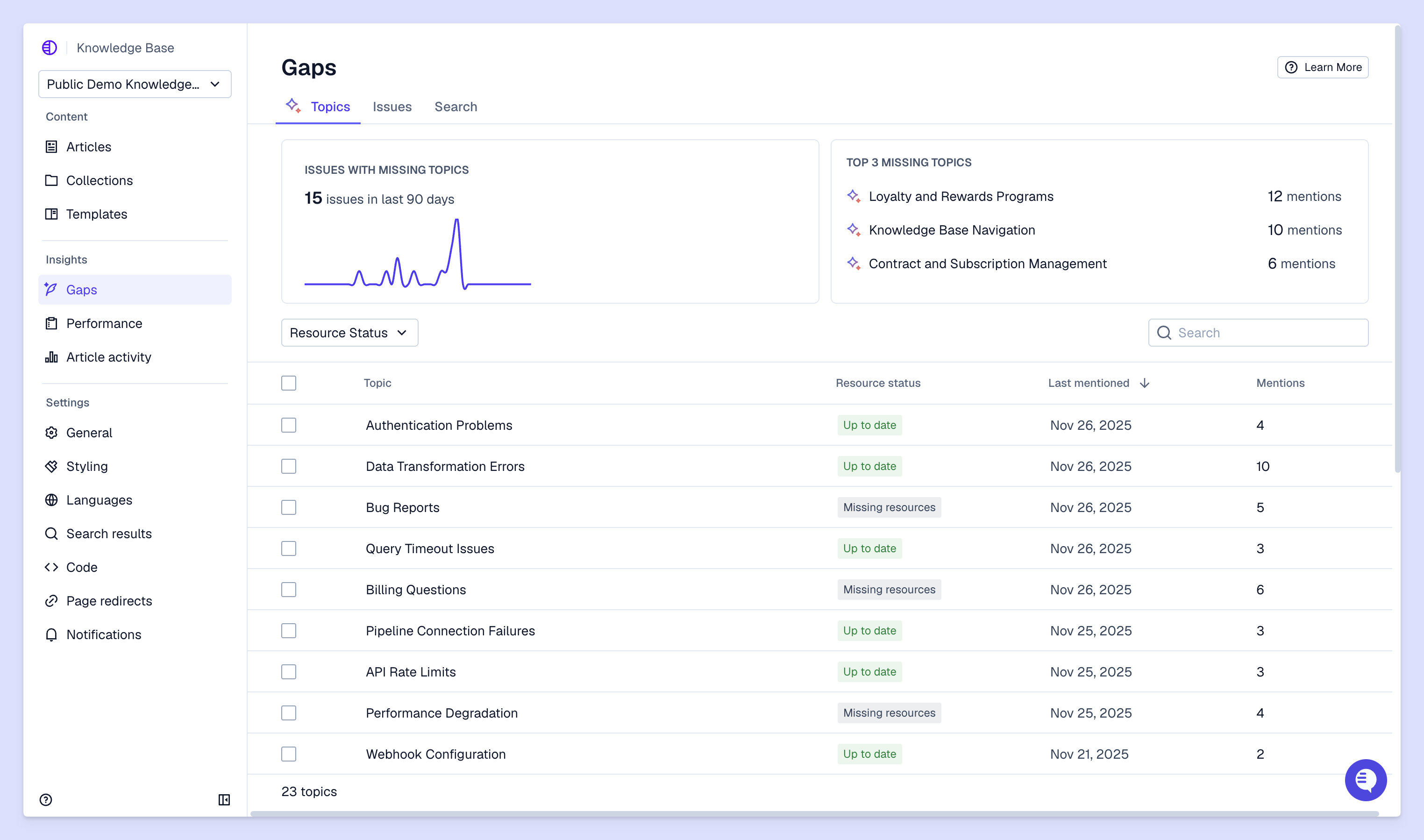
Modern support platforms help you create and maintain knowledge bases more efficiently. AI can suggest article topics based on patterns in your support conversations, or identify gaps where customers report issues you haven't documented yet.
Pylon is the modern B2B support platform that offers true omnichannel support across Slack, Teams, email, chat, ticket forms, and more. Our AI Agents & Assistants automate busywork and reduce response times. Plus, with Account Intelligence that unifies scattered customer signals to calculate health scores and identify churn risk, we're built for customer success at scale.
You can create variations of templates for different audiences, like enterprise customers versus small businesses, or technical versus non-technical users. Customize the depth of detail and terminology based on who will read the article.
Review your templates quarterly to confirm they reflect current best practices and product changes. Update individual articles whenever features change, but the template structure itself only needs updates when you identify consistent gaps or improvements.
Internal templates document processes and information for your support team only, like escalation procedures or internal tools. External templates create customer-facing articles that help users self-serve, like troubleshooting guides or how-to articles.
Pylon Workforce Management is available now. See it in action with a live demo.