
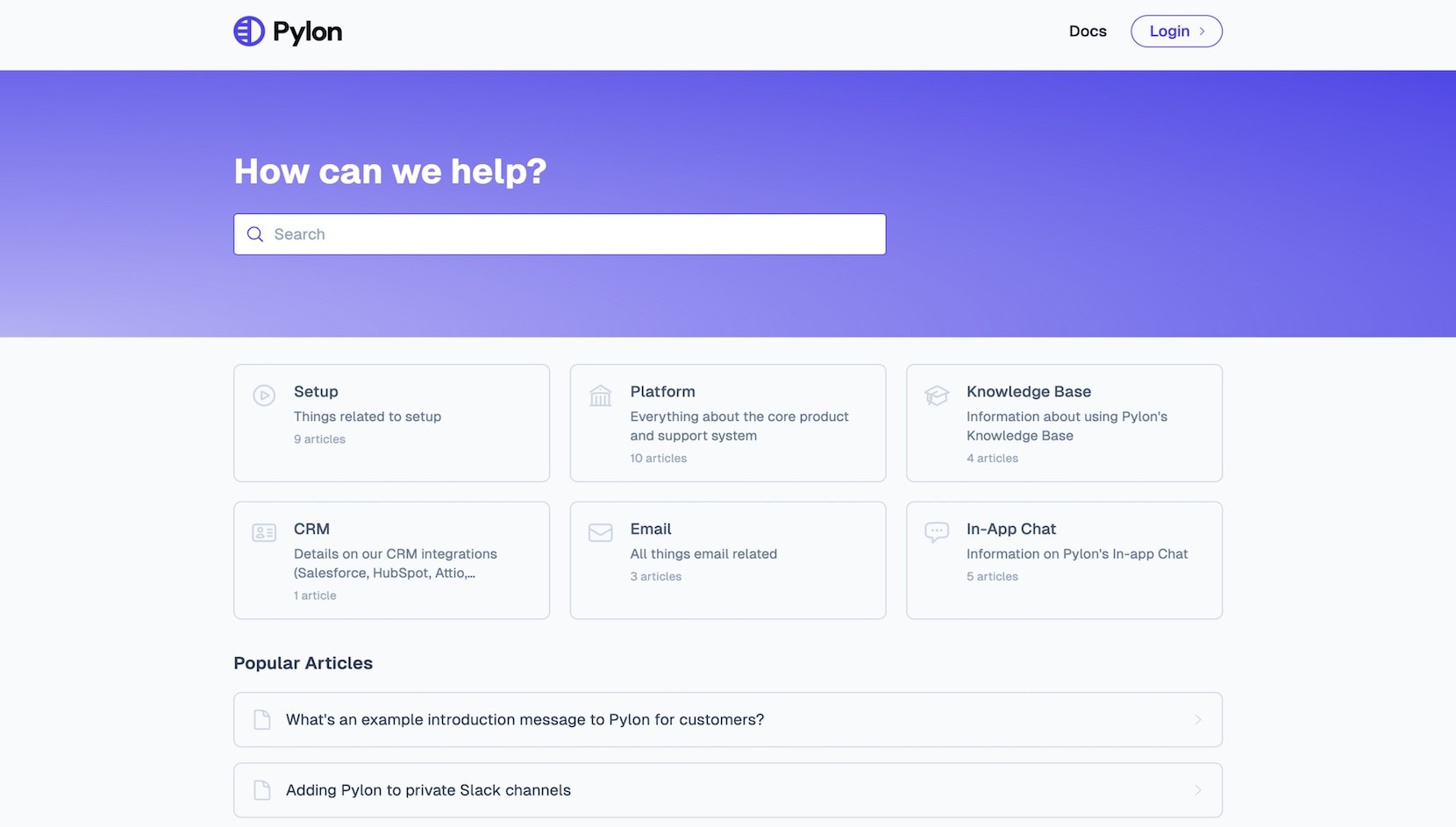
A knowledge base is a self-serve library of help articles, guides, and documentation that enables customers to solve problems without needing to contact support.
It’s especially valuable for B2B companies, where users often need detailed, technical, or team-wide solutions. A well-designed knowledge base reduces ticket volume, shortens resolution times, and boosts customer confidence.
Because your users may have many types of questions, from setup to advanced functionality to error resolution, you’ll need a variety of article templates. Each template should serve a different need and be tailored to specific points in the customer journey.
Let’s go over the main types of article templates you need to get your knowledge base off the ground, as well as what knowledge base article templates we offer here at Pylon.
Each article type serves a unique purpose in supporting your B2B customers. A complete knowledge base should include a range of templates to support different use cases and stages of the user journey.
Each template is critical in helping customers get value from your product, from onboarding to troubleshooting.
Here are the core templates to include in your B2B knowledge base:

Getting Started Guides are ideal for onboarding new customers or helping existing users explore new products or features. These articles eliminate early friction, show users how to achieve quick wins, and set the stage for long-term success.
They matter because the first few moments a customer spends with your product can shape their entire experience. A clear, well-structured Getting Started Guide builds confidence, promotes product adoption, and reduces the need for direct support intervention.
This format is especially helpful in B2B environments, where initial setup often involves multiple team members and cross-functional workflows.
The title should include a phrase like "Getting Started," "First Steps," or "Initial Setup." Including the product name, module, or feature adds clarity and boosts searchability, for example, "Getting Started With Acme CRM" or "First Steps With Slack Integration."
Ensure the title clearly conveys that this is a beginner-level article designed to help users start from scratch.
Use a short, friendly paragraph to set expectations. Let the user know what they’ll achieve by the end of the guide. For example, "By the end of this article, you'll have your Acme workspace fully configured." Mention how long the setup may take and list any necessary information they will need before starting, such as access permissions, logins, or connected tools.
If your product requires team collaboration or specific roles to complete setup (e.g., admin-only features), make that clear upfront.
This is the core of the guide. Use a numbered list to walk users through each step in sequential order. Begin with the first action, such as creating an account, logging in, or verifying email, and proceed to the point where the product is fully set up.
Be specific with your instructions:
Break steps into sections for longer processes or use sub-bullets to guide users through more complex flows.
Once setup is complete, help users experience the core value of your product right away. Walk them through a basic but impactful task, such as:
These actions should be quick, tangible wins that build momentum and encourage continued exploration. Keep the tone encouraging and focused on immediate impact.
Wrap up the article with suggestions for what users can do next. Link to related articles or tutorials that expand on what they just did, for example:
If applicable, highlight any support resources, customer communities, or in-app tips that can help them go further.
By the end of a Getting Started Guide, users should feel confident and oriented, not overwhelmed. Aim to make the experience seamless and empowering from the very beginning.

FAQ articles are perfect for answering high-volume, repetitive questions that don’t require personalized support. They save your team time while helping users find quick, reliable answers.
This format also improves customer satisfaction by reducing wait times and helping users feel more self-sufficient. It’s ideal for billing, account settings, product limitations, or onboarding questions.
Include the subject + FAQ in the title. For example, "Billing FAQ" or "Acme Analytics: Common Questions." This makes the article easy to recognize in a search.
A 2- to 3-sentence intro that sets the context for the article. Explain what the FAQ covers, noting that users should contact support if their question is not listed.
Format each question as a bolded bullet or H3. Keep answers brief and to the point, 1 to 3 sentences. Link to related articles for additional information.
Example:
Q1: How do I update my billing information?
A: Go to Settings > Billing > Payment Details. Click "Edit" and enter your new info.
Q2: Can I export my reports?
A: You can export reports to PDF or CSV via the Reports tab.
Include links to related How-To articles, Getting Started Guides, or product updates.

Feature Overview articles are especially useful for SaaS knowledge bases when introducing a product capability, explaining how it works, and helping users understand its value. They’re great for onboarding new customers, educating existing ones, and promoting the adoption of lesser-known features.
These articles reduce confusion and increase user confidence by walking readers through key concepts, practical applications, and common scenarios. They help users understand when and why to use a feature, not just how.
They also support internal enablement. Sales and support teams can reference Feature Overviews to stay aligned on messaging and help customers get the most from the product.
Include the feature name and clarify that this article is an overview. Use titles like: "What is Smart Reports?" or "Smart Reports Overview." This improves searchability and sets expectations about the article’s purpose.
Start with a brief, 2- to 3-sentence explanation of the feature, what it helps users do, and why it matters. Focus on the value and primary benefit.
Example: “Smart Reports is a customizable analytics dashboard that gives you real-time visibility into your key metrics. Use it to track team performance, product adoption, or campaign results, all in one place."
Explain which users benefit most from this feature and when it’s appropriate to use. Group use cases by role, goal, or scenario.
Example:
Use a bullet list or short paragraphs to outline the core elements of the feature. Each point should be actionable or explain what the user can do.
Examples:
Provide instructions for locating the feature in your product. Mention if it’s available to all users or only specific roles (e.g., admins only).
Example: “Navigate to Reports > Smart Reports from the main dashboard. Only Admin and Manager roles have access by default."
Optionally, include a section for practical advice. This can help users avoid pitfalls and get more value from the feature.
Examples:
End with links to other resources, such as:
This structure ensures users not only understand what a feature is but also how to use it effectively in their specific context.

How-To articles are designed for task completion. Each article should walk the user through a specific process from start to finish.
This format is ideal for reducing confusion, preventing support tickets, and making users feel more confident.
Use How to + the specific action. For example: "How to Create a Dashboard."
Briefly explain what this guide helps the user do, why it matters, and any requirements (e.g., admin access, feature toggle, etc.).
Use a numbered list to guide users through each action. Reference specific UI elements and break down complex steps into sub-bullets if needed.
Explain what the user should see or achieve once finished.
Link to follow-up articles, Feature Overviews, or related tasks.

Troubleshooting Guides help users resolve common issues or error messages on their own. They’re especially useful for recurring technical problems.
These articles save your team time, build trust, and empower users to resolve issues faster.
Use a clear problem description or "Troubleshooting" prefix. For example: "Troubleshooting Login Errors.”
Explain the issue in plain language. Include common symptoms, error codes, or behaviors users might see.
First, offer easy-to-verify tasks, such as checking browser compatibility, login status, or network connection.
Present multiple possible fixes labeled "Solution 1," "Solution 2," etc. Use step-by-step instructions for each.
Describe how users will know the issue is fixed.
Let users know what to do if none of the solutions work. Include contact options and a list of what they should share (e.g., screenshots of error messages) with the support team.

Glossaries help users get familiar with your product’s language, especially when it includes technical terms, acronyms, or industry-specific concepts. They’re invaluable for onboarding new customers, training internal teams, and supporting users who may not have a deep technical background.
They provide a shared language for users, reduce misunderstandings, and encourage self-sufficiency. A Glossary supports better search functionality and improves comprehension across related articles when integrated into your knowledge base.
This type of article is particularly valuable for B2B products with complex features, customizable workflows, or integrations with other platforms. It ensures everyone, from end users to executives, can understand the terms they encounter throughout the customer journey.
Include the word "Glossary" or "Terminology" in the title so it’s easy to locate and understand.
Examples:
Begin with a short paragraph explaining who the Glossary is for and what it includes. Mention the terms covered, such as acronyms, UI labels, configuration options, or domain-specific phrases. Clarify that the definitions are tailored to your product’s usage, not necessarily the generic industry meaning.
Example: "This glossary is designed to help new and non-technical users understand key terms used throughout Acme CRM. It includes product-specific labels, configuration terms, and acronyms you'll encounter during setup and daily use."
List terms in alphabetical order to make the Glossary easy to navigate. Format each term as a heading or bold label, followed by a concise definition. Link the term to additional reading (e.g., a How-To article or Feature Overview) when relevant.
Examples:
Keep definitions concise and straightforward. If a term has multiple meanings depending on the context, then clarify how it’s used within your product.
At the end of the Glossary, include links to other documentation that helps reinforce the concepts introduced. This may include:
Encourage users to bookmark the Glossary and refer back to it as needed. You can also link Glossary entries throughout your knowledge base to provide helpful tooltips or hover definitions.
Here at Pylon, we help B2B businesses create knowledge bases to allow customers to self-support, saving customer support teams time.
While you can create any of the above-mentioned knowledge base articles through Pylon, these have predefined options and styling that make publishing articles fast and easy.
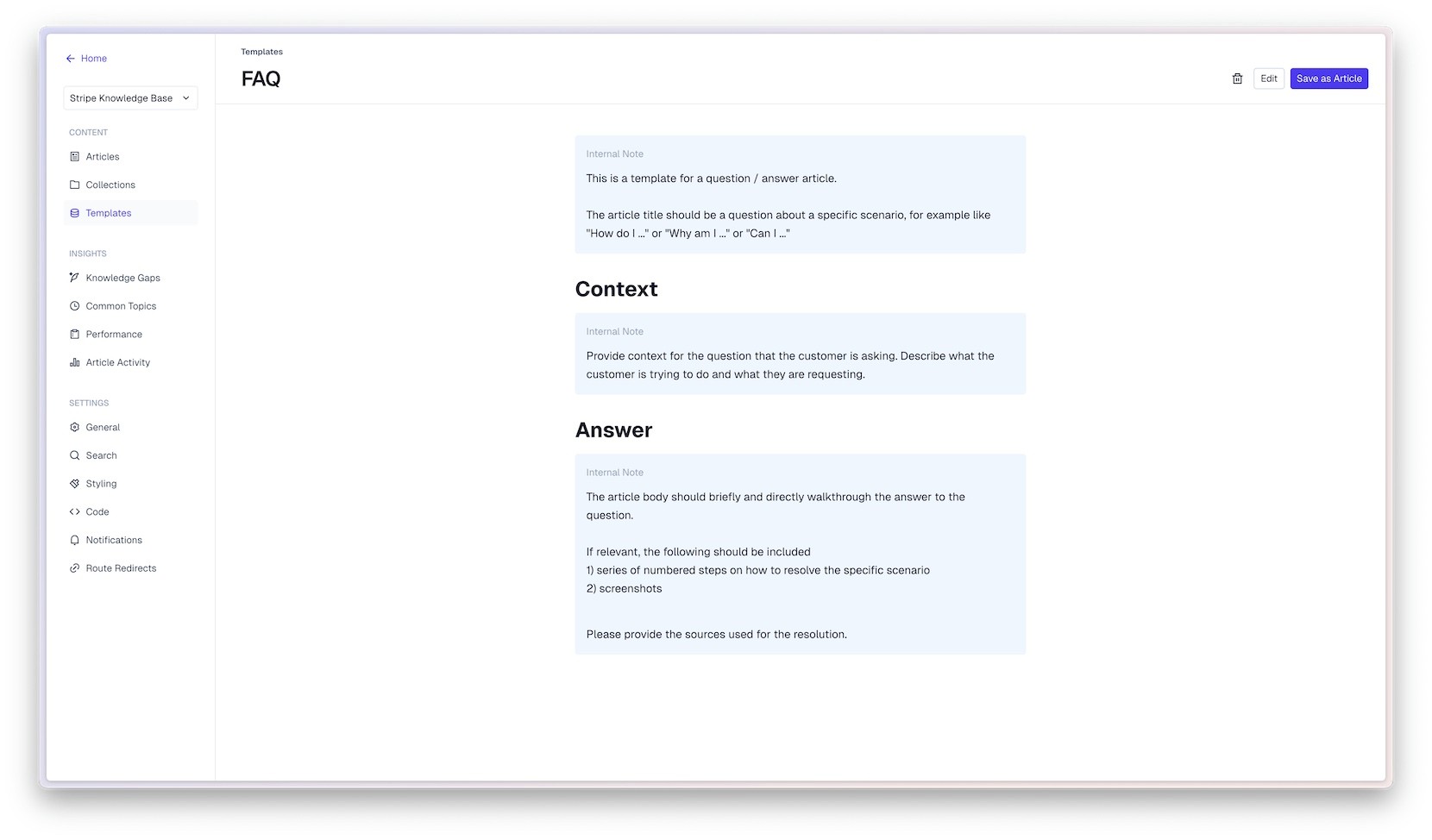
This is a template for a question-and-answer article. The article title should be a question about a specific scenario, such as "How do I ..." or "Why am I ..." or "Can I ..."
Provide context for the question that the customer is asking. Describe what the customer is trying to do and what they are requesting.
The article body should briefly and directly walk through the answer to the question. If relevant, the following should be included:
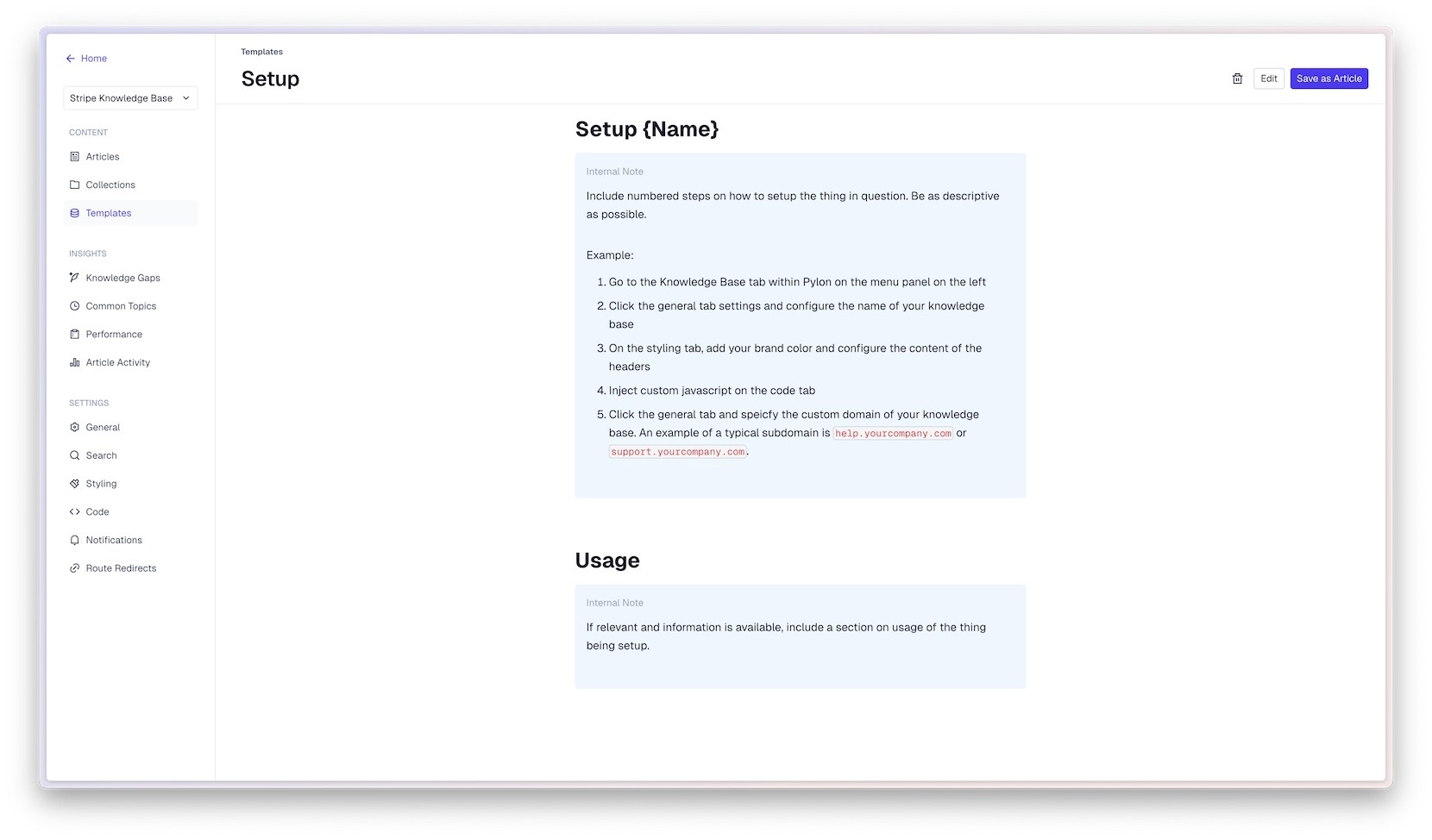
This is an article template for a setup guide.
The article title should be "How to set up {name of the feature/product}"
Include numbered steps on how to set up the thing in question. Be as descriptive as possible. Example:
If relevant information is available, include a section on the usage of the thing being set up.
Creating effective documentation isn’t just about having the right templates or having the right knowledge base software. It’s about delivering clear, well-structured, and actively maintained content. These best practices help ensure your knowledge base content meets user needs and scales with your product.
Clear, consistent articles help customers get answers faster, reduce confusion, and minimize requests to your B2B customer service team. Internally, they also serve as a valuable resource for support and success teams, ensuring alignment and accuracy across customer interactions.
Strong documentation doesn’t just inform; it builds trust. Users who see reliable, easy-to-follow content feel more confident navigating your product independently.
Follow these best practices for every article you publish:
Always write as if your reader is encountering the product for the first time. Explain each step completely, even if it feels obvious. Avoid insider language or acronyms unless they’re clearly defined. If a visual aid can make a step easier to follow, include it.
Your readers are skimming. Use clear headings, numbered steps, bullet points, and short paragraphs to improve readability. White space is your friend. Add anchor links or a mini table of contents for longer content to guide users through sections.
Tone matters more than you think. A confident, conversational voice makes your documentation feel approachable. Avoid sounding robotic or overly formal; your goal is guiding, not lecturing.
Each article should answer one specific question or solve one problem. This helps with SEO, makes the article easier to find, and ensures users aren’t overwhelmed. If you find yourself addressing multiple distinct topics, split them into separate pieces.
Documentation should evolve with your product. Set a schedule for reviewing and updating content, especially after feature releases or UI changes. Enable article feedback tools and encourage users to flag outdated or unhelpful content. Continuous feedback is key to continuous improvement.
>> Need inspiration? Check out our favorite B2B knowledge bases here
Pylon Workforce Management is available now. See it in action with a live demo.