Updated January 20, 2026 | 17 min read
Many B2B customers already live in Slack all day. So when they have a problem with your product, it's tedious to switch tools, log into a separate support portal, fill out a form, and wait hours for an email response.
That's why support teams are increasingly meeting customers where they already work — by turning Slack into their primary support channel. This guide covers how to set up your workspace, integrate your support tools, and scale Slack support as your customer base grows.
Slack brings your support team and customers into the same workspace for real-time conversations. Instead of waiting for email replies or navigating clunky ticketing portals, your customers can message you directly and quickly get answers.
The real advantage is that multiple people on your team can access customer conversations and requests in channels like Slack. This makes it easy to loop in other team members for escalations or complex issues.
Every conversation with a customer lives in one searchable place. You can easily find recent threads, save conversations, or pin important messages to a channel.
This also means your support knowledge doesn't get trapped in individual email inboxes. When someone on your team solves a tricky problem in a Slack thread, others on the team can see exactly how they did it.
You can loop in engineers, product managers, or account executives by mentioning them in a thread. They see the full conversation history instantly instead of you playing telephone between the customer and other teams.
This works especially well for complex technical problems where you need input from multiple people. Everyone discusses the issue together in the same channels instead of forwarding emails back and forth.
Slack turns support into an ongoing relationship instead of a series of one-off tickets. Your customers aren't filling out a form each time they have a question — they're continuing a conversation with your team.
Over time, you learn each customer's communication style, common issues, and preferences. Support starts feeling less like a transactional process and more like asking a colleague for help.
Before inviting your first customer to a shared channel, organize your workspace so it can scale as you grow your customer base and team.
Start by creating separate sections in your Slack sidebar: one for customer-facing channels and another for internal team coordination. Most teams label these sections "Customer channels" and "Internal support."
Slack Connect lets you invite people outside your organization into shared channels. You'll need a paid Slack plan (Pro or Business+) to use it, though your customers can join for free.
Go to your workspace settings, enable Slack Connect, then set permissions for who can create external channels and invite customers. Most teams restrict this to support leads or managers to keep things consistent.
Pick a naming system before you have dozens of customer channels. Most B2B teams use formats like "support-[company-name]" or "customer-[company-name]" so channels group together alphabetically.
Consistent naming makes it easy to find the right customer when someone needs to jump in and help. It also simplifies channel management as you scale to hundreds of customers.
Review who can access customer channels and what they can do in them. You might want to restrict who can invite new people, share files, or see channels with sensitive customer data.
Also check your data retention settings. Some companies archive messages after 90 days for compliance, while others keep full history so they can reference past conversations.
Different channel types serve different purposes in your support workflow. You'll typically need a mix of customer-facing channels and internal coordination spaces.
The standard approach is for teams to create one dedicated, shared channel per customer account. This gives each account a direct line to your support team and keeps all their conversations in one place.
As you grow, you might create multiple channels per customer — one for general support, another for implementation, and maybe a third for executive relationships. This separation prevents different types of conversations from getting mixed together.
Create private internal channels where your team can discuss customer issues without customers accessing these conversations. This works well for coordinating responses to complex problems or asking colleagues for help.
Many teams create a general #support-team channel for quick questions, plus customer-specific internal channels like #internal-acme-corp for ongoing discussions about particular accounts.
Set up dedicated channels for urgent issues that need immediate attention. When someone posts here, your team knows to drop what they're doing and respond.
Here's how teams typically structure escalation channels:
Slack becomes significantly more powerful when it's connected to your other support tools. Here are a few systems you'll want to integrate it with.
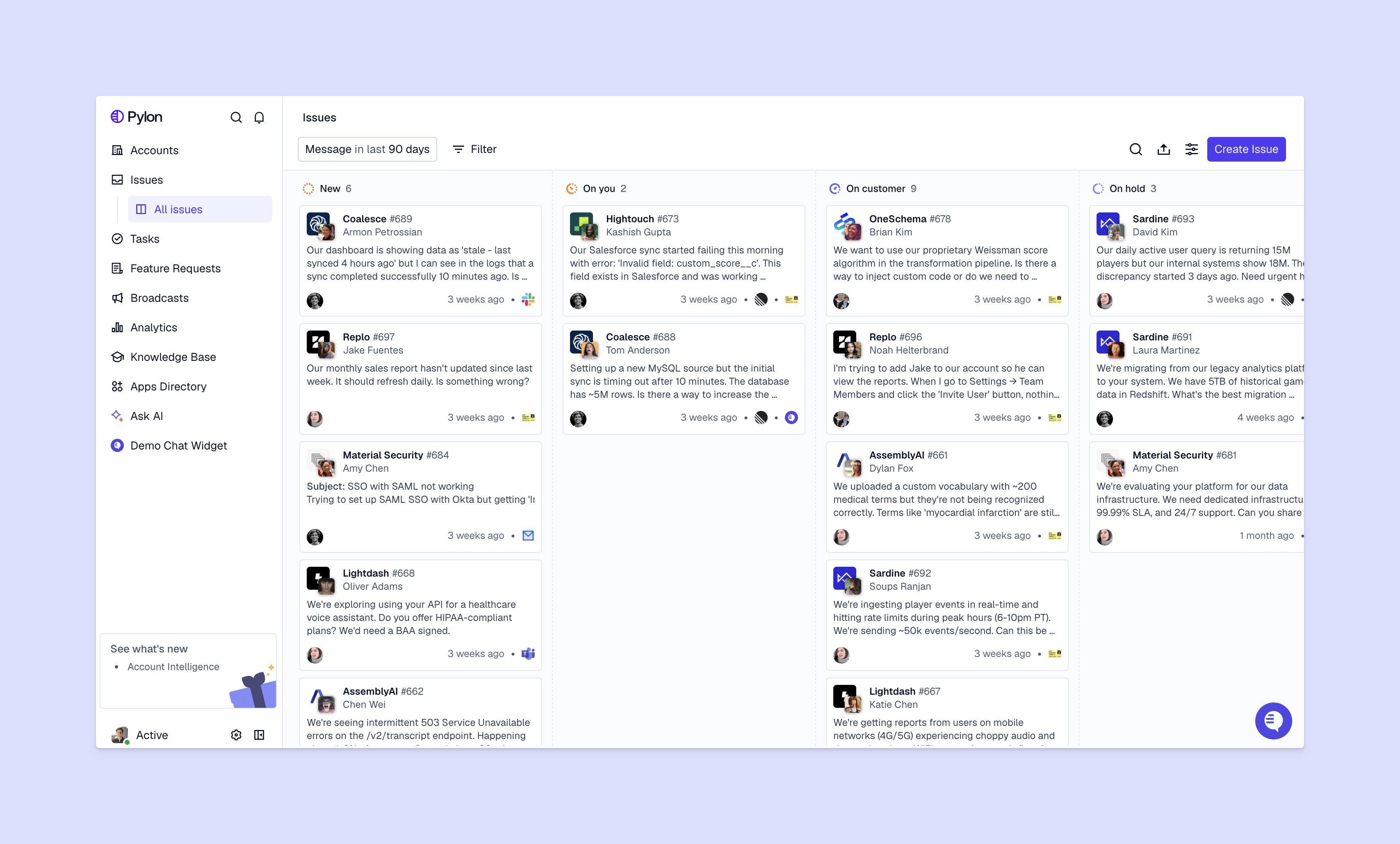
The most important integration connects Slack to your support platform — this makes it much easier to scale and track your Slack support. Tools like Pylon automatically create issues from Slack messages, let you explicitly convert conversations into tickets, and sync messages bidirectionally so your team can respond from Pylon or Slack.
This helps teams maintain proper ticket tracking, SLAs, and reporting. You get the speed of Slack without losing the structure of a support system.
Once you've integrated Slack with your support platform, connect your CRM data so you can see customer context while responding to Slack messages. When a customer posts a question, you'll immediately know their contract value, renewal date, and account health.
This context helps you prioritize responses and personalize support. You might handle issues differently for enterprise customers versus smaller accounts, or proactively check in when you notice a pattern of issues from a customer approaching renewal.
Integrate your help documentation so team members can quickly search for and share relevant articles while they're responding to customer issues. This speeds up responses and helps customers find answers to follow-up questions on their own.
Connect analytics tools to track support metrics from your Slack conversations — some support platforms like Pylon offer custom dashboards for this exact purpose. You'll want visibility into response times, resolution rates, and message volume to understand how your Slack support performs.
Once your channels are set up, follow these practices to help you manage customer conversations effectively.
Reply in threads instead of posting new messages directly in the channel. Threads keep related messages grouped together so multiple conversations can happen simultaneously without confusion.
This becomes critical as channels get busier. Without threads, a channel with three ongoing customer issues becomes an incomprehensible mess where nobody can tell which messages relate to which problem.
Platforms like Pylon also use AI to automatically group related Slack messages into a single issue — even when they aren't threaded. This can help you keep conversations organized as you scale.
Tell customers upfront when your team is available and how quickly they can expect responses. Post your support hours in the channel description and set up an auto-response for messages received outside those hours.
Most B2B teams commit to responding within 2 to 4 hours during business hours. The specific timeframe matters less than setting expectations clearly and consistently meeting them.
Build reusable templates for common responses to save time and maintain consistency. Slack lets you create shortcuts (type "/" to see them) for frequently used messages.
Common templates include:
You can also set up macros in your support platform for common replies or greetings.

Archive channels for customers who churn or for resolved project-specific channels. Use channel topics to track the current status of ongoing issues so team members can quickly understand what's happening.
You might also pin important messages (like onboarding checklists or frequently referenced documentation) to the top of channels so they're easy to find.
Monitor key metrics like first response time, resolution time, and customer satisfaction to understand how Slack support performs. Platforms like Pylon automatically track these metrics across your Slack support accounts so you can spot trends and identify areas for improvement.
As you scale Slack support to hundreds or even thousands of channels, automating your support workflows will help reduce manual work for your team.
Use your support platform to set up rules that automatically notify the right team members based on message content, customer segment, or channel. If a customer mentions APIs, your technical support team gets notified. If they report a bug, engineering gets looped in.
Configure notifications so urgent messages get immediate attention without overwhelming your team with noise. Maybe you use your support platform to set up AI that recognizes high-priority issues based on message content — and that triggers immediate notifications.
You'll also want SLA alerts that notify team members when a message has been waiting too long for a response. This prevents things from slipping through the cracks during busy periods.
Build AI agents in your support platform that can answer common questions automatically. AI agents can handle simple requests like "What are your support hours?" or "Where's your documentation?" instantly.
The key is making sure AI knows when to hand off to a support engineer. You want automation for simple issues, but complex or sensitive issues should always go to your team.
Implement a Slack ticketing system, so you can turn conversations into tickets in your help desk. Platforms like Pylon use AI to automatically group and create issues out of Slack messages, then route them to the right team member based on the type of issue.
As your customer base grows, you'll need systems to maintain Slack support quality without burning out your team. Here are a few strategies for scaling Slack support beyond your first 50 customers.
Some customers will message you constantly while others only reach out occasionally. For high-volume accounts, consider assigning a dedicated support team member or rotating coverage so someone always has context on ongoing issues.
Create support tiers where simple questions get handled quickly by junior team members while complex technical issues escalate to specialists. This lets you scale your team efficiently — you don't need every team member to be a senior engineer.
Most teams structure this as L1 (general support), L2 (technical specialists), and L3 (engineering escalations). Each tier has clear criteria for when to escalate up.
Organize channels by customer type (enterprise, mid-market, startup) so you can allocate resources appropriately. Your enterprise customers might get faster response times or dedicated team members while smaller customers get standard support.
Regularly review your support metrics to identify bottlenecks and improvement opportunities. Look for patterns like certain types of issues taking longer to resolve or particular customers requiring disproportionate support time.
Pylon's Account Intelligence helps you identify at-risk customers from Slack support conversations by analyzing sentiment, response times, and issue frequency. This early warning system lets you proactively address problems before customers churn.
Slack transforms B2B customer support by bringing speed, transparency, and collaboration to customer conversations. Start by setting up your workspace structure, creating dedicated customer channels, and integrating Slack with your support platform.
Pylon is the modern B2B support platform that offers true omnichannel support across Slack, Teams, email, chat, ticket forms, and more. Our AI Agents & Assistants automate busywork and reduce response times. Plus, with Account Intelligence that unifies scattered customer signals to calculate health scores and identify churn risk, we're built for customer success at scale.
Slack alone doesn't function as a full ticketing system, but when you integrate it with a platform like Pylon, your Slack conversations automatically become trackable tickets with proper routing, assignment, and resolution tracking.
Slack offers a free plan for basic use, while paid plans start at $7.25 per user per month for the Pro plan and $12.50 for Business+, which includes Slack Connect for external customer channels.
Slack Connect channels allow you to invite people from outside your organization (like customers) into shared channels, while regular channels only include team members from your workspace.
Use an omnichannel support platform like Pylon that brings Slack messages and email into one view, so your team can respond to customers regardless of which channel they use.
Pylon Workforce Management is available now. See it in action with a live demo.